World's simplest browser-based Portable Network Graphics (PNG) HSL mask generator. Just import your PNG image into the editor on the left, and you will instantly get an HSL-filtered mask that isolates colors based on your defined hue, saturation, and lightness ranges on the right. In the options, you can set custom Min/Max HSL values, select mask modes and colors, preserve the alpha channel, and view mask analysis with raw pixel data. Free, quick, and very powerful. Created with love by team Browserling.
World's simplest browser-based Portable Network Graphics (PNG) HSL mask generator. Just import your PNG image into the editor on the left, and you will instantly get an HSL-filtered mask that isolates colors based on your defined hue, saturation, and lightness ranges on the right. In the options, you can set custom Min/Max HSL values, select mask modes and colors, preserve the alpha channel, and view mask analysis with raw pixel data. Free, quick, and very powerful. Created with love by team Browserling.
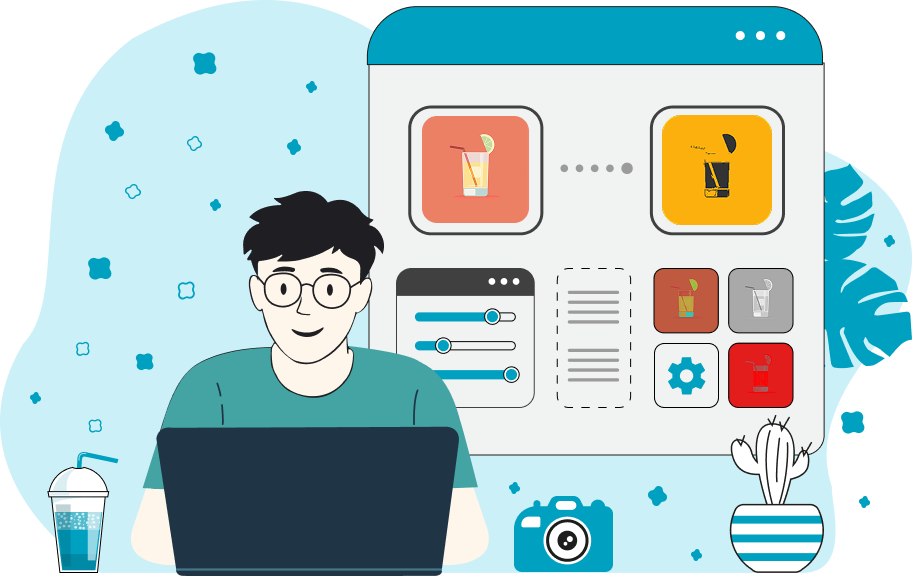
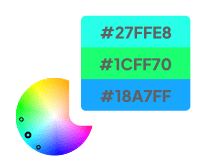
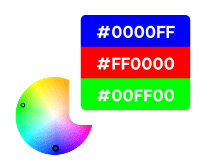
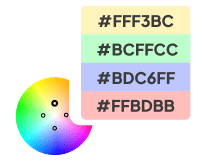
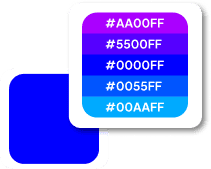
This browser-based utility generates a mask using the HSL color model, allowing you to isolate a specific color range in a PNG image. It selects pixels that fall within a defined color range, for example, isolating all greens in a forest or all low-saturation (nearly grayscale) areas in an image. Unlike basic color pickers, this tool provides full control over three dimensions of color – Hue, Saturation, and Lightness. Hue (0°–360°) controls the color family (0° red, 120° green, 240° blue, etc.). By setting "Min Hue" and "Max Hue", you select a segment of the color wheel. The range is circular, so values like 350° to 10° correctly capture reds across the 0° boundary. Saturation (0%–100%) controls color intensity. At 0%, the color is gray; at 100%, it is fully vivid. High ranges (e.g., 80%–100%) isolate strong colors, while lower ranges include muted or washed-out tones. Lightness (0%–100%) controls brightness. 0% is black, 50% is normal brightness, and 100% is white. You can restrict the mask to dark, mid-tone, or light areas by adjusting the min and max values. To create a mask, you can manually enter H, S, L values or simply click anywhere on the input PNG image. The tool will instantly capture the color of the selected pixel, showing its exact RGB and HSL coordinates. It then automatically generates a ±5°/±5% range around that color to help you start creating your mask. The tool offers three modes for mask output. The "Create Two-color Mask" mode displays HSL-matching pixels in one solid color and non-matching pixels in another. The "Mask Matched HSL pixels" mode colors only the HSL-matching pixels while leaving all other pixels unchanged. The "Mask Non-matched HSL pixels" mode colors only the non-matching pixels while leaving HSL-matching pixels unchanged. You can customize the mask colors in the options. By default, HSL pixels are shown in black, and non-HSL pixels are shown in white. The "Preserve Alpha Channel" option keeps transparent pixels unchanged in the output mask, which is especially useful when working with PNG images, logos, or icons without a background. The program also provides instant statistics, including the total number of pixels, how many match the selected HSL, and how many do not, along with their percentages. Png-abulous!
This browser-based utility generates a mask using the HSL color model, allowing you to isolate a specific color range in a PNG image. It selects pixels that fall within a defined color range, for example, isolating all greens in a forest or all low-saturation (nearly grayscale) areas in an image. Unlike basic color pickers, this tool provides full control over three dimensions of color – Hue, Saturation, and Lightness. Hue (0°–360°) controls the color family (0° red, 120° green, 240° blue, etc.). By setting "Min Hue" and "Max Hue", you select a segment of the color wheel. The range is circular, so values like 350° to 10° correctly capture reds across the 0° boundary. Saturation (0%–100%) controls color intensity. At 0%, the color is gray; at 100%, it is fully vivid. High ranges (e.g., 80%–100%) isolate strong colors, while lower ranges include muted or washed-out tones. Lightness (0%–100%) controls brightness. 0% is black, 50% is normal brightness, and 100% is white. You can restrict the mask to dark, mid-tone, or light areas by adjusting the min and max values. To create a mask, you can manually enter H, S, L values or simply click anywhere on the input PNG image. The tool will instantly capture the color of the selected pixel, showing its exact RGB and HSL coordinates. It then automatically generates a ±5°/±5% range around that color to help you start creating your mask. The tool offers three modes for mask output. The "Create Two-color Mask" mode displays HSL-matching pixels in one solid color and non-matching pixels in another. The "Mask Matched HSL pixels" mode colors only the HSL-matching pixels while leaving all other pixels unchanged. The "Mask Non-matched HSL pixels" mode colors only the non-matching pixels while leaving HSL-matching pixels unchanged. You can customize the mask colors in the options. By default, HSL pixels are shown in black, and non-HSL pixels are shown in white. The "Preserve Alpha Channel" option keeps transparent pixels unchanged in the output mask, which is especially useful when working with PNG images, logos, or icons without a background. The program also provides instant statistics, including the total number of pixels, how many match the selected HSL, and how many do not, along with their percentages. Png-abulous!
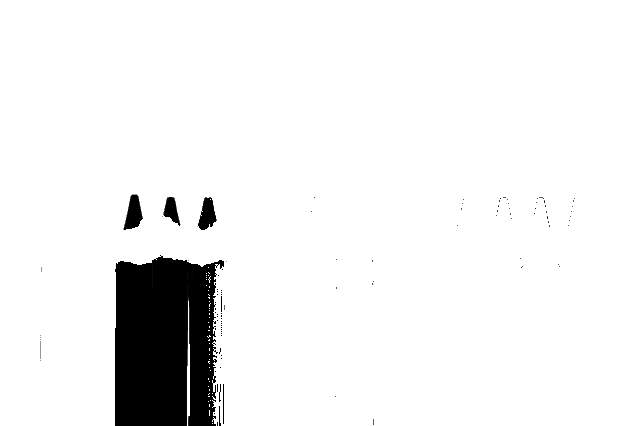
In this example, we isolate the green family of hues from a PNG image using the HSL model's Hue component. Pure green corresponds to 120°, but instead of selecting a single hue value, we define a wider range from 80° to 160° to capture the full green spectrum (from yellow-green to cyan-green). To exclude gray pixels, we set the minimum saturation to 5%. To avoid pure black and pure white areas, we restrict lightness to the 5%–95% range. The result is a two-color mask where green pixels appear in black, and all other pixels appear in white, while the original transparency remains preserved. (Source: Pexels.)
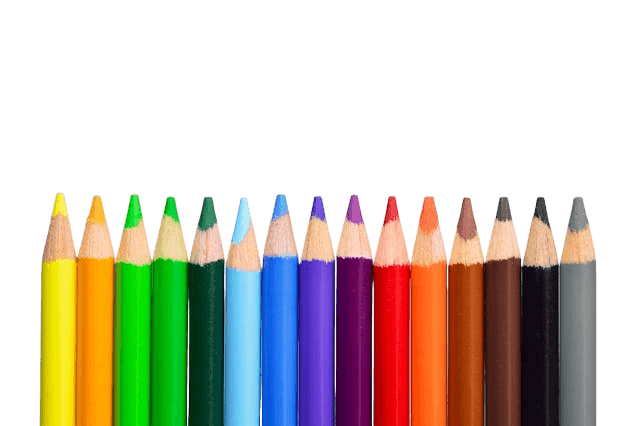
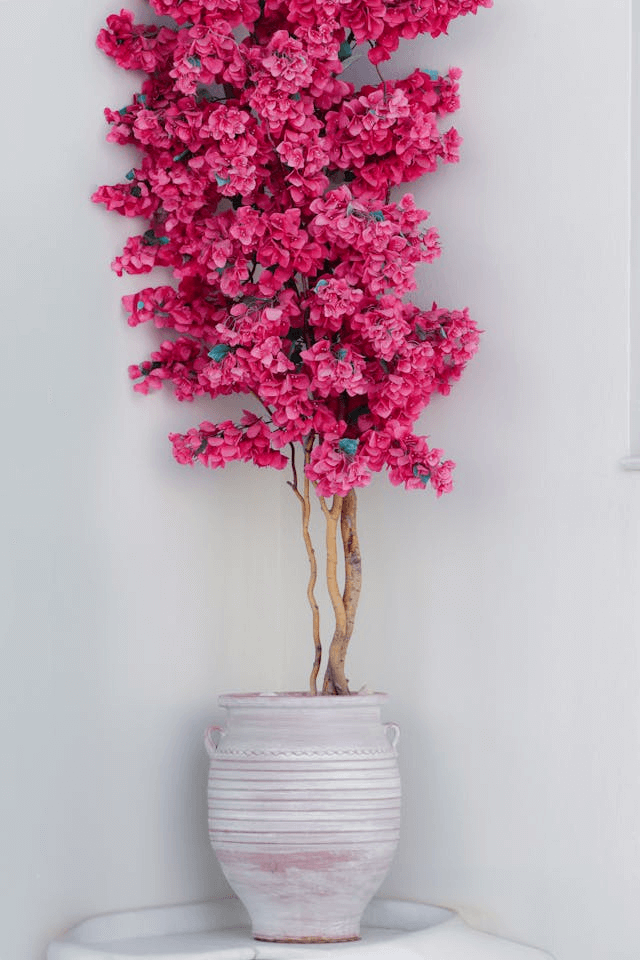
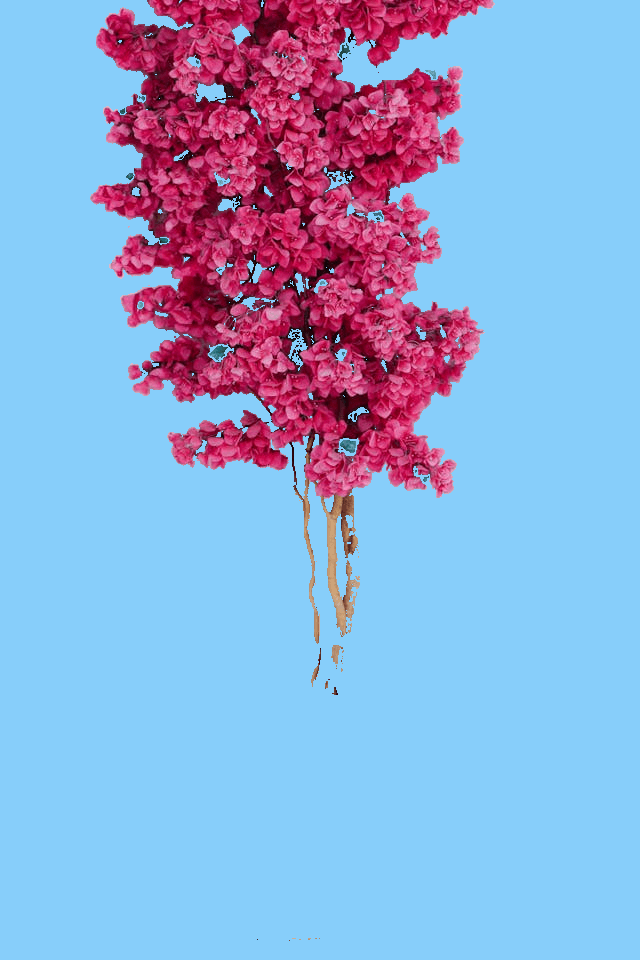
This example generates a mask based purely on color saturation. We allow the full hue range (0°–360°) and the full lightness range (0%–100%) so that hue and brightness do not affect the selection. We then define saturation from 25% to 100%, meaning only sufficiently vivid pixels are included. The mask keeps matching pixels unchanged (the bright pink bougainvillea flowers) while filling all low-saturation areas with a solid lightskyblue color. (Source: Pexels.)
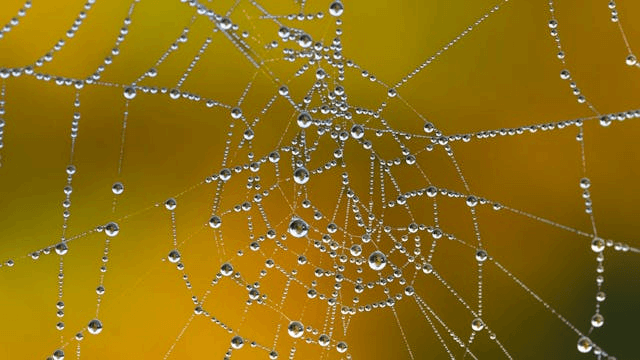
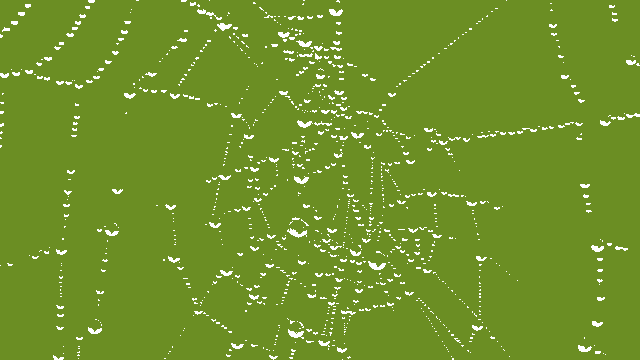
In this example, we investigate the lightness component by isolating sparkling water droplets on a spider web. We ignore hue and saturation variations, focusing solely on a lightness range of 60% to 100% to capture the bright reflections. The mask shows these highlights in white and covers all darker mid-tones and shadows with a solid olive-drab color. (Source: Pexels.)
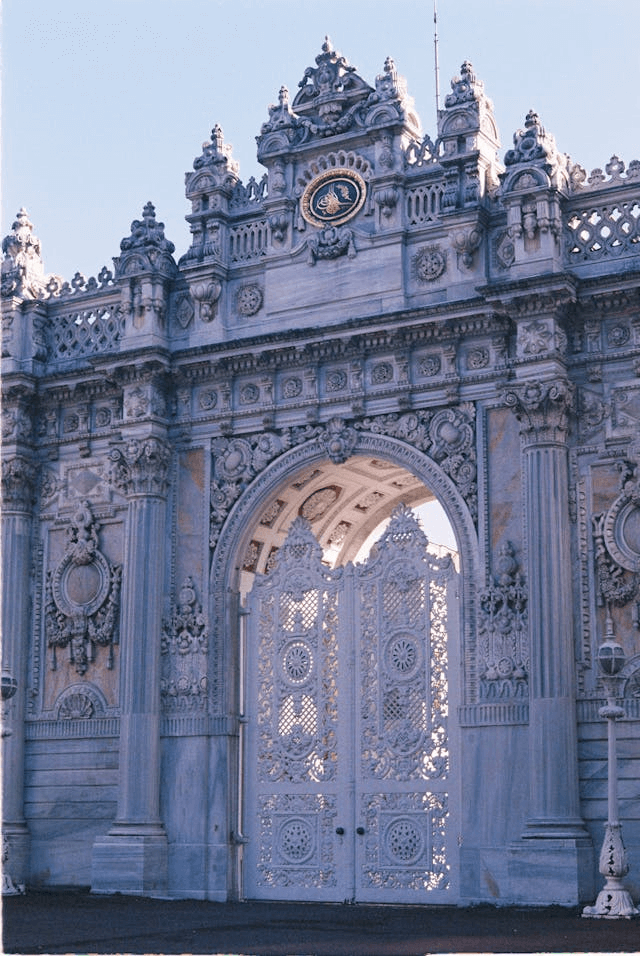
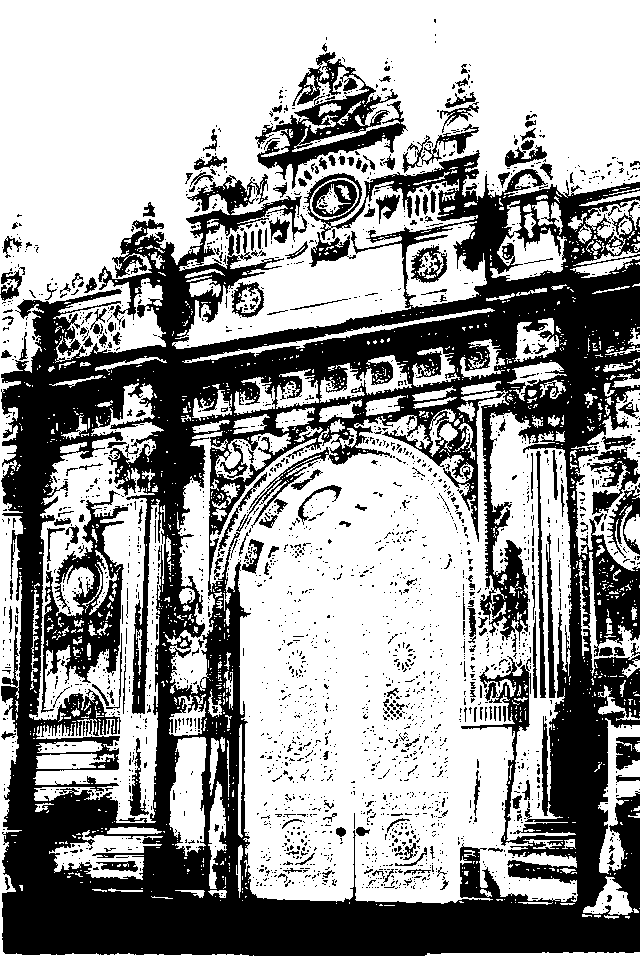
This example creates a two‑color stencil of the Dolmabahce Palace gate by dividing pixels into dark and light groups. We ignore hue and saturation completely and focus only on lightness. Pixels with lightness between 0% and 45% are classified as dark and displayed in solid black, while everything above 45% is considered light and made transparent. (Source: Pexels.)
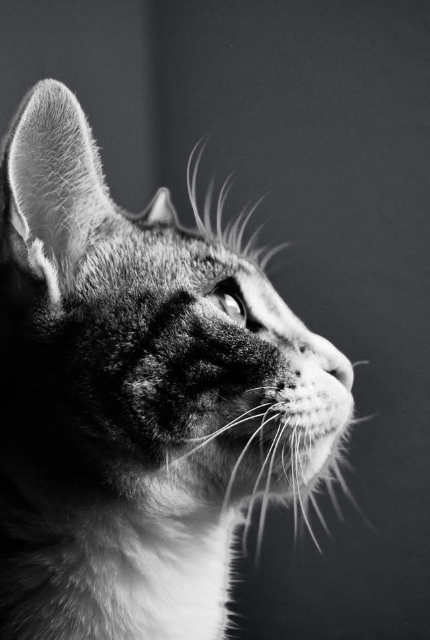
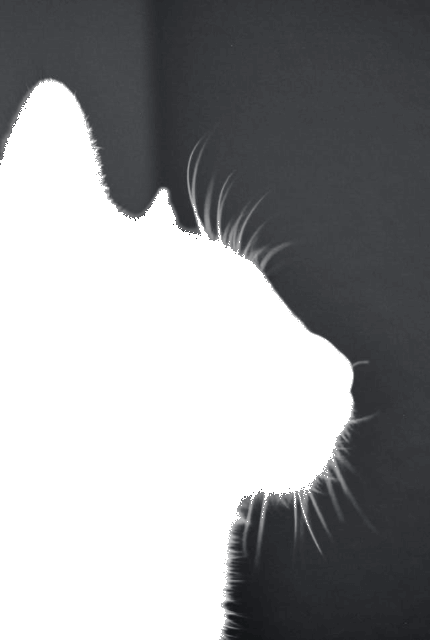
In this example, we generate a mask that identifies perfectly grayscale pixels in a cat portrait PNG. In the HSL model, a color is grayscale when its saturation equals 0%, meaning it contains no chromatic information, and hue becomes irrelevant. We therefore set saturation to exactly 0% and allow the full lightness range (0%–100%). The mask highlights all grayscale pixels in white while leaving the remaining colored pixels unchanged. (Source: Pexels.)
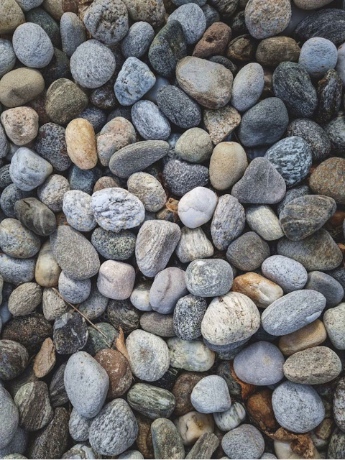
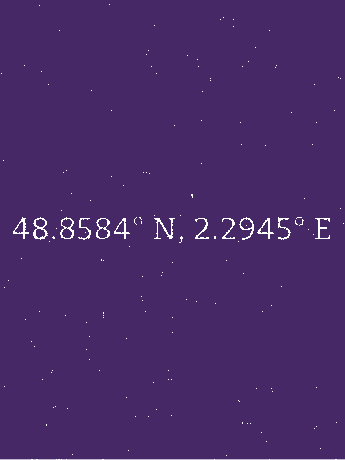
This example reveals hidden data within a seemingly ordinary PNG image of stones. By configuring the mask to isolate pixels with 0% saturation, we uncover hidden coordinates in the PNG's grayscale values. This specific HSL filtering reveals the text "48.8584° N, 2.2945° E", which points directly to the Eiffel Tower in Paris. (Source: Pexels.)
Edit a PNG in your browser.
Compare two or more PNG images.
Convert a PNG image to an AV1 image (AVIF).
Convert an AV1 image (AVIF) to a PNG image.
Convert a PNG image to a High Efficiency Image File (HEIF).
Convert a Hide Efficiency Image File (HEIF) to a PNG image.
Convert a PNG image to an ICO icon.
Convert a PNG image to a TIFF image.
Convert a TIFF image to a PNG image.
Convert a PNG image to a PIK image.
Convert a PIK image to a PNG image.
Convert a PNG image to a PPM image.
Convert a PPM image to a PNG image.
Convert a PNG image to a BPG image.
Convert a BPG image to a PNG image.
Convert a PNG image to a FLIF image.
Convert a FLIF image to a PNG image.
Convert a PNG image to a Paint.net file.
Convert a Paint.net file to a PNG image.
Convert a PNG image to a Photoshop file.
Convert a Photoshop file to a PNG image.
Convert a PNG image to an SVG image.
Convert a PNG image to an PDF document.
Convert a PDF document to a PNG image (or multiple images).
Convert a PNG image to an EPS file.
Convert an EPS file to a PNG image (or multiple images).
Convert a PNG image to a JFIF image.
Convert a JFIF image to a PNG image.
Convert a PNG image to raw RGB values.
Convert RGB values to a PNG image.
Convert a PNG image to raw BGR values.
Convert BGR values to a PNG image.
Convert a PNG image to raw RGBA values.
Convert RGBA values to a PNG image.
Convert a PNG image to raw BGRA values.
Convert BGRA values to a PNG image.
Convert multiple PNGs to a GIF animation.
Convert an APNG animation to a GIF image.
Convert a GIF animation to an APNG image.
Convert an APNG image to a Webp image.
Convert a Webp image to an APNG image.
Convert an APNG image to an MP4 video.
Convert an MP4 video to an APNG image.
Convert an APNG image to an AVI video.
Convert an AVI video to an APNG image.
Convert an APNG image to a WMV video.
Convert an WMV video to an APNG image.
Extract all frames from an APNG image.
Play a PNG animation (APNG) frame by frame.
Change the playback speed of an animated PNG (APNG).
Change how many times an animated PNG loops.
Reverse the order of frames in an animated PNG (APNG).
Created animated PNGs (APNGs) from input images.
Check if the given PNG file is an animated PNG file (APNG).
Create a sprite sheet from all animated PNG (APNG) frames.
Create an animated PNG (APNG) from a sprite sheet.
Create Excel art from a PNG image.
Break a PNG image into multiple pieces.
Generate a slideshow animation from multiple PNGs.
Generate a mosaic wall from multiple PNGs.
Convert a PNG into a hexagonal grid of pixels.
Convert a PNG into a triangular grid of pixels.
Create a Voronoi diagram from a PNG image.
Darken PNG corners compared to its center.
Create multiple reflections of a PNG.
Apply a Bayer filter on a PNG.
Make a PNG look like it was taken via night vision goggles.
Make a PNG look like it's spherical.
Run a PNG through the Mobius Transform.
Convert between RGB, CMYK, HSV, and HSL color spaces.
Remove dithering from a PNG image.
Convert a PNG to an ASCII art image.
Convert a PNG to an ANSI art image.
Convert ANSI art to a PNG image.
Convert a PNG to a Braille art image.
Convert Braille art to a PNG image.
Increase the quality of a PNG image.
Extract a 2d slice from a PNG.
Create a PNG that contains all possible RGB colors.
Find all textual information in a PNG image and extract it.
Given any 2D PNG, add 3rd dimension to it.
Quickly erase text (labels, captions) from a PNG.
Quickly delete a watermark from a PNG.
Salvage a PNG that has bad bytes in it and doesn't open.
Conceal a secret message in a PNG image.
Update meta data of a PNG file.
Delete meta data from a PNG picture.
Check if the given file is a valid PNG without errors.
Subscribe to our updates. We'll let you know when we release new tools and features, and when we organize online workshops.
Enter your email here
We're Browserling — a friendly and fun cross-browser testing company powered by alien technology. At Browserling we love to make people's lives easier, so we created this collection of online PNG tools. We created the simplest possible user interface for our tools and they are now used by millions of users every month. Behind the scenes, our online PNG tools are actually powered by our web developer tools that we created over the last couple of years. Check them out!