World's simplest browser-based Portable Network Graphics (PNG) light pixel mask generator. Just import your PNG image into the editor on the left, and you will instantly get a mask that highlights which pixels are bright based on lightness (L) on the right. In the options, you can adjust the lightness threshold, choose mask colors, preserve original transparency, and view exact counts and percentages of light and dark pixels. Free, quick, and very powerful. Created with love by team Browserling.
World's simplest browser-based Portable Network Graphics (PNG) light pixel mask generator. Just import your PNG image into the editor on the left, and you will instantly get a mask that highlights which pixels are bright based on lightness (L) on the right. In the options, you can adjust the lightness threshold, choose mask colors, preserve original transparency, and view exact counts and percentages of light and dark pixels. Free, quick, and very powerful. Created with love by team Browserling.

This browser-based utility generates a two-color mask from any PNG image, highlighting areas that contain light pixels. The mask is created based on the lightness (L) value in the HSL color model, where L ranges from 0% (completely dark) to 100% (fully bright). By default, the lightness is set to 90%, which allows bright regions and highlights to be identified as "light pixels", while midtones and shadows are classified as "dark pixels". For example, if you upload a photo and set the threshold to 70%, the mask will highlight all moderately bright areas, such as reflections on faces or glimmers on water. If you raise the lightness to 90%, only the most intense highlights will be marked. In the options, you can choose how the mask is applied. The "Full Light/Dark Mask" mode maps the entire image into two solid colors – one for light pixels and one for dark pixels. If you want to keep the original dark details, the "Colorize Light Pixels" mode fills only the bright regions while leaving the rest of the image intact. If you prefer to preserve the original highlights, the "Colorize Dark Pixels" mode masks only the dark areas while keeping highlights untouched. You can also decide how fully transparent pixels should be handled. If the "Keep Alpha Transparency" option is enabled, transparent pixels remain invisible in the mask. If disabled, they are treated as dark pixels, since most transparent PNG pixels are stored as black with zero opacity. In addition to generating the mask, the tool calculates detailed pixel statistics for the image. It reports the total number of pixels in the PNG, as well as the exact count and percentage of light and dark pixels based on the selected lightness value. Png-abulous!
This browser-based utility generates a two-color mask from any PNG image, highlighting areas that contain light pixels. The mask is created based on the lightness (L) value in the HSL color model, where L ranges from 0% (completely dark) to 100% (fully bright). By default, the lightness is set to 90%, which allows bright regions and highlights to be identified as "light pixels", while midtones and shadows are classified as "dark pixels". For example, if you upload a photo and set the threshold to 70%, the mask will highlight all moderately bright areas, such as reflections on faces or glimmers on water. If you raise the lightness to 90%, only the most intense highlights will be marked. In the options, you can choose how the mask is applied. The "Full Light/Dark Mask" mode maps the entire image into two solid colors – one for light pixels and one for dark pixels. If you want to keep the original dark details, the "Colorize Light Pixels" mode fills only the bright regions while leaving the rest of the image intact. If you prefer to preserve the original highlights, the "Colorize Dark Pixels" mode masks only the dark areas while keeping highlights untouched. You can also decide how fully transparent pixels should be handled. If the "Keep Alpha Transparency" option is enabled, transparent pixels remain invisible in the mask. If disabled, they are treated as dark pixels, since most transparent PNG pixels are stored as black with zero opacity. In addition to generating the mask, the tool calculates detailed pixel statistics for the image. It reports the total number of pixels in the PNG, as well as the exact count and percentage of light and dark pixels based on the selected lightness value. Png-abulous!
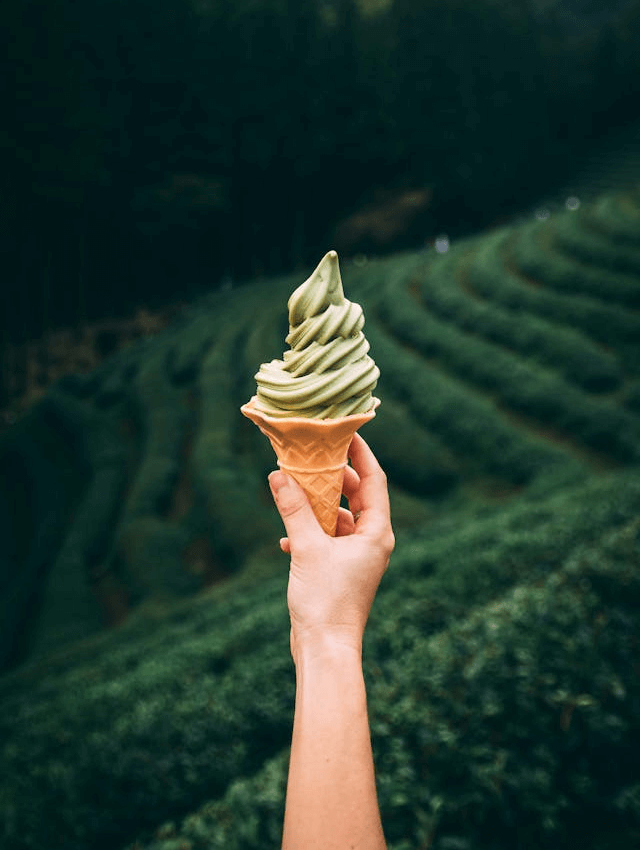
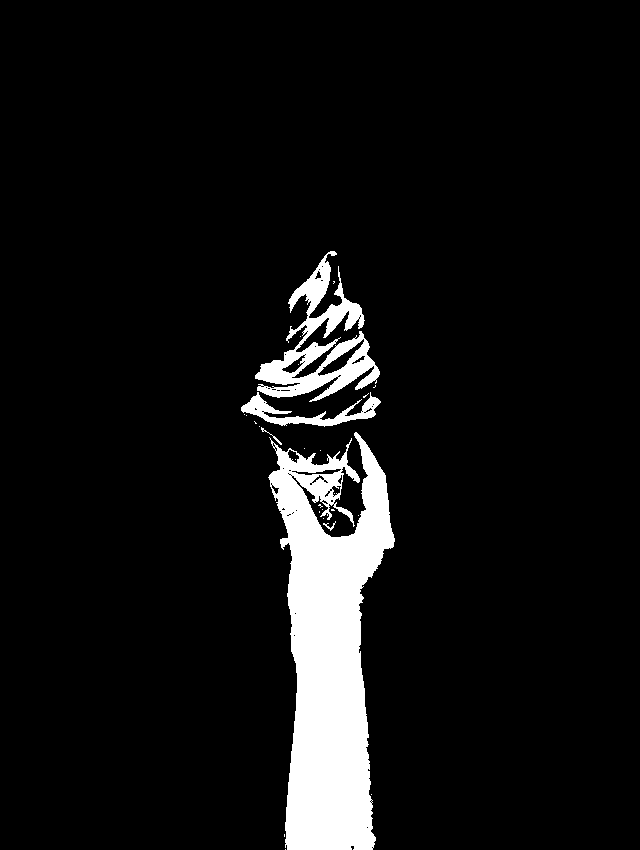
In this example, we separate light pixels from dark ones in a PNG image using a lightness threshold of 60%. Pixels with HSL lightness from 60% to 100% are classified as light, capturing white areas, pale tones, and regions with above-average illumination. Because the foreground is much brighter than the background, the resulting mask produces a clear silhouette of a hand holding an ice cream cone. White represents light pixels, and black represents dark pixels. (Source: Pexels.)
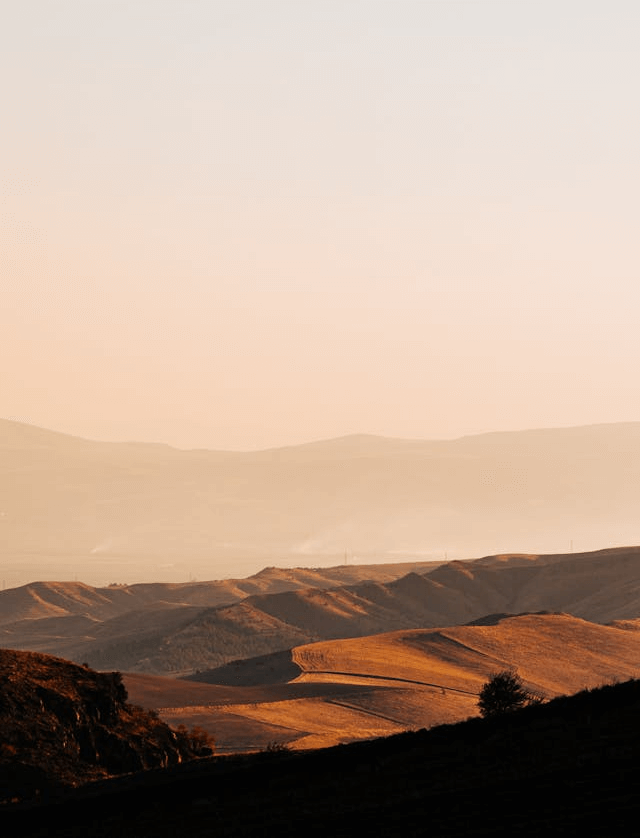
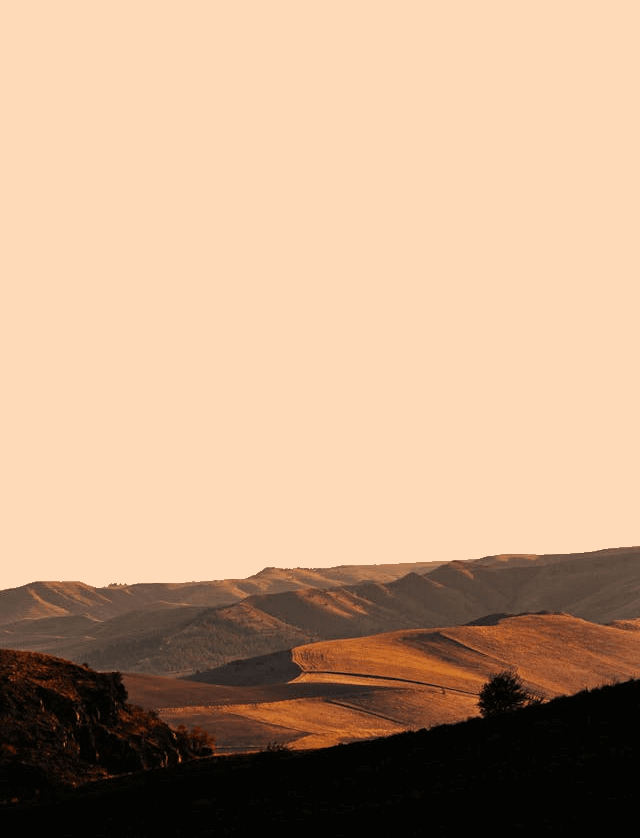
In this example, we generate a mask that replaces only the brightest pixels in a PNG of dawn hills. By setting the lightness threshold to 60%, the tool identifies the morning sky and the distant peaks as light pixels. Using the "Colorize Light Pixels" mode, we swap these bright regions for a solid peachpuff color while leaving all darker areas of the image in their original state. (Source: Pexels.)
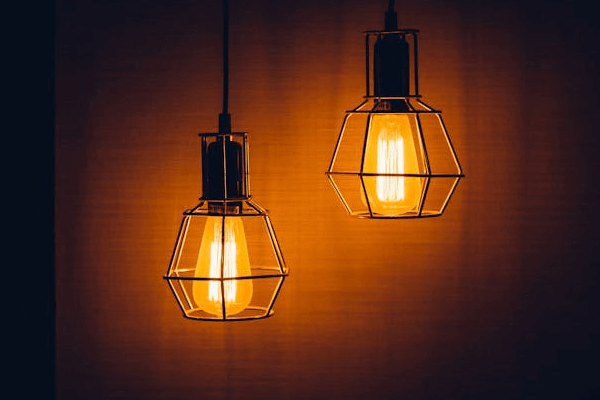
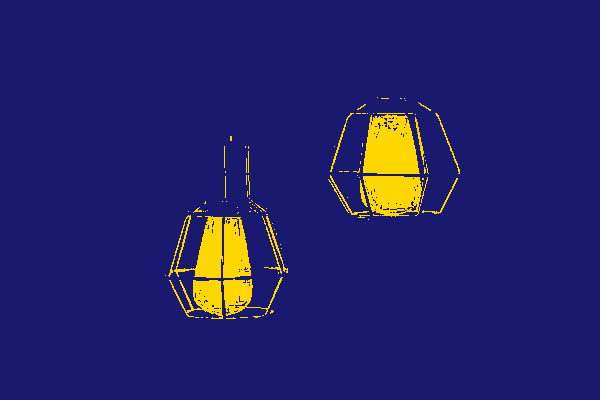
This example shows how a lightness mask can be used to study light distribution in a PNG. With the threshold fixed at 50%, pixels are split into brighter and darker groups. Bright areas are displayed in gold, while dark regions are rendered in midnight blue, making it easy to see where light fades into shadow. This technique is incredibly useful for artists and creators; by incrementally adjusting the L-value from 100% down to 0%, they can observe the gradual expansion of light across a scene. (Source: Pexels.)
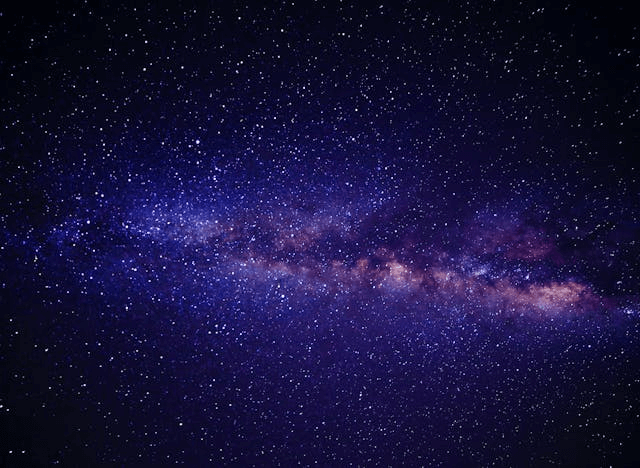
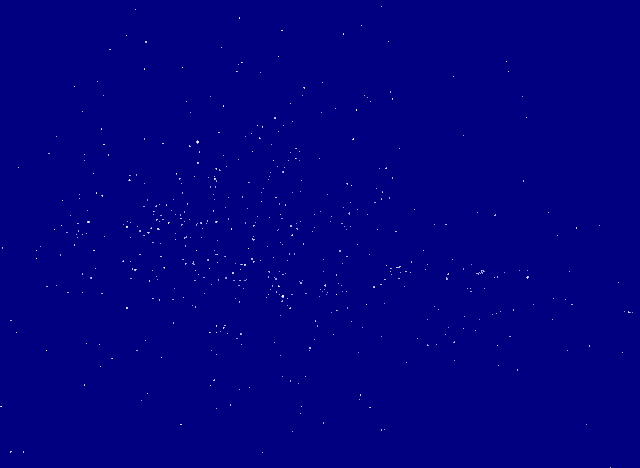
In this example, we use the light-pixel-mask tool to analyze a starry night sky. We set the lightness threshold to 70%, isolating only the brightest stars from the dark background. These pixels retain their original colors, while all darker sky areas are replaced with a solid navy fill. This significantly simplifies the image and makes it easier to visually count the stars, while preserving their natural brightness and color. (Source: Pexels.)
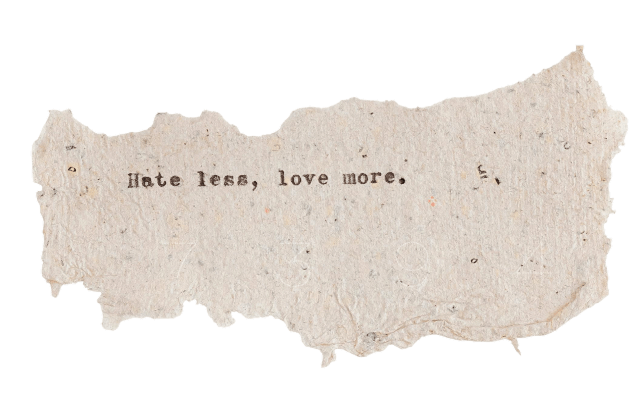
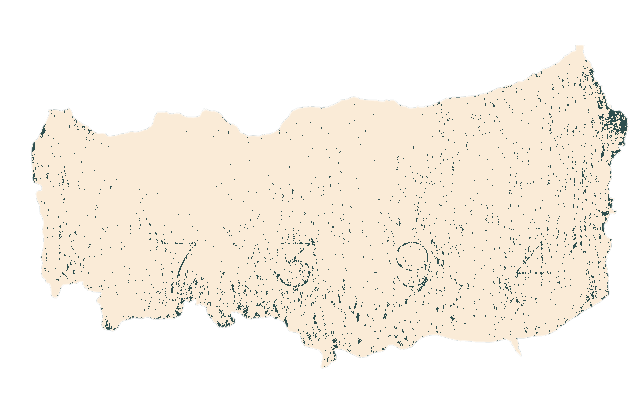
In this example, we use a lightness mask to reveal a hidden PIN code "7394" inside an image of a paper scrap. At first glance, the PNG looks like it contains only a simple quote, but adjusting the lightness threshold to 87% exposes brighter details that are otherwise hard to see. By assigning darkSlateGray to light pixels and antiqueWhite to the background, the contrast increases enough to make the hidden code clearly readable. The PNG also contains a transparent background around the paper fragment, and because transparency preservation is enabled, those transparent areas remain transparent in the mask as well. (Source: Pexels.)
Edit a PNG in your browser.
Compare two or more PNG images.
Convert a PNG image to an AV1 image (AVIF).
Convert an AV1 image (AVIF) to a PNG image.
Convert a PNG image to a High Efficiency Image File (HEIF).
Convert a Hide Efficiency Image File (HEIF) to a PNG image.
Convert a PNG image to an ICO icon.
Convert a PNG image to a TIFF image.
Convert a TIFF image to a PNG image.
Convert a PNG image to a PIK image.
Convert a PIK image to a PNG image.
Convert a PNG image to a PPM image.
Convert a PPM image to a PNG image.
Convert a PNG image to a BPG image.
Convert a BPG image to a PNG image.
Convert a PNG image to a FLIF image.
Convert a FLIF image to a PNG image.
Convert a PNG image to a Paint.net file.
Convert a Paint.net file to a PNG image.
Convert a PNG image to a Photoshop file.
Convert a Photoshop file to a PNG image.
Convert a PNG image to an SVG image.
Convert a PNG image to an PDF document.
Convert a PDF document to a PNG image (or multiple images).
Convert a PNG image to an EPS file.
Convert an EPS file to a PNG image (or multiple images).
Convert a PNG image to a JFIF image.
Convert a JFIF image to a PNG image.
Convert a PNG image to raw RGB values.
Convert RGB values to a PNG image.
Convert a PNG image to raw BGR values.
Convert BGR values to a PNG image.
Convert a PNG image to raw RGBA values.
Convert RGBA values to a PNG image.
Convert a PNG image to raw BGRA values.
Convert BGRA values to a PNG image.
Convert multiple PNGs to a GIF animation.
Convert an APNG animation to a GIF image.
Convert a GIF animation to an APNG image.
Convert an APNG image to a Webp image.
Convert a Webp image to an APNG image.
Convert an APNG image to an MP4 video.
Convert an MP4 video to an APNG image.
Convert an APNG image to an AVI video.
Convert an AVI video to an APNG image.
Convert an APNG image to a WMV video.
Convert an WMV video to an APNG image.
Extract all frames from an APNG image.
Play a PNG animation (APNG) frame by frame.
Change the playback speed of an animated PNG (APNG).
Change how many times an animated PNG loops.
Reverse the order of frames in an animated PNG (APNG).
Created animated PNGs (APNGs) from input images.
Check if the given PNG file is an animated PNG file (APNG).
Create a sprite sheet from all animated PNG (APNG) frames.
Create an animated PNG (APNG) from a sprite sheet.
Create Excel art from a PNG image.
Break a PNG image into multiple pieces.
Generate a slideshow animation from multiple PNGs.
Generate a mosaic wall from multiple PNGs.
Convert a PNG into a hexagonal grid of pixels.
Convert a PNG into a triangular grid of pixels.
Create a Voronoi diagram from a PNG image.
Darken PNG corners compared to its center.
Create multiple reflections of a PNG.
Apply a Bayer filter on a PNG.
Make a PNG look like it was taken via night vision goggles.
Make a PNG look like it's spherical.
Run a PNG through the Mobius Transform.
Convert between RGB, CMYK, HSV, and HSL color spaces.
Remove dithering from a PNG image.
Convert a PNG to an ASCII art image.
Convert a PNG to an ANSI art image.
Convert ANSI art to a PNG image.
Convert a PNG to a Braille art image.
Convert Braille art to a PNG image.
Increase the quality of a PNG image.
Extract a 2d slice from a PNG.
Create a PNG that contains all possible RGB colors.
Find all textual information in a PNG image and extract it.
Given any 2D PNG, add 3rd dimension to it.
Quickly erase text (labels, captions) from a PNG.
Quickly delete a watermark from a PNG.
Salvage a PNG that has bad bytes in it and doesn't open.
Conceal a secret message in a PNG image.
Update meta data of a PNG file.
Delete meta data from a PNG picture.
Check if the given file is a valid PNG without errors.
Subscribe to our updates. We'll let you know when we release new tools and features, and when we organize online workshops.
Enter your email here
We're Browserling — a friendly and fun cross-browser testing company powered by alien technology. At Browserling we love to make people's lives easier, so we created this collection of online PNG tools. We created the simplest possible user interface for our tools and they are now used by millions of users every month. Behind the scenes, our online PNG tools are actually powered by our web developer tools that we created over the last couple of years. Check them out!