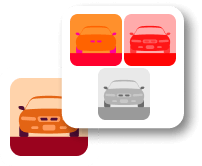
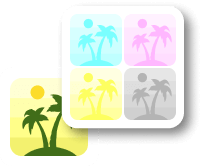
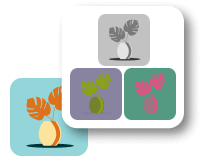
World's simplest online PNG background tester. Just upload a transparent PNG image into the input area, and you'll instantly get it on multiple solid-color backgrounds in the output area. In the tool options, you can define any number of background colors, choose a horizontal or vertical layout, adjust padding and spacing between previews, and scale the output to control the file size. Free, quick, and very powerful. Created with love by team Browserling.
World's simplest online PNG background tester. Just upload a transparent PNG image into the input area, and you'll instantly get it on multiple solid-color backgrounds in the output area. In the tool options, you can define any number of background colors, choose a horizontal or vertical layout, adjust padding and spacing between previews, and scale the output to control the file size. Free, quick, and very powerful. Created with love by team Browserling.

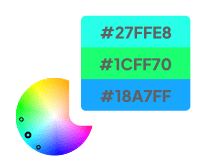
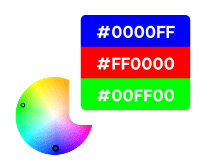
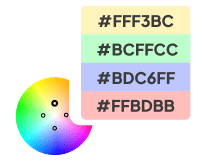
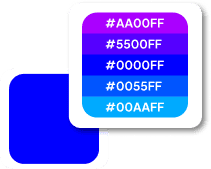
This online tool allows you to preview how any transparent PNG (such as a logo, sticker, icon, or cut-out photo) will look on different solid-color backgrounds. It is especially useful for designers, marketers, and developers who need to check visibility, contrast, and overall appearance before publishing graphics. For example, you can verify whether a logo remains readable on both dark and light backgrounds, or see how a product sticker looks across multiple brand colors at the same time. Once you upload a PNG image with transparency, the tool places the same PNG on top of several solid-color backgrounds and combines all previews into a single output image. You can define any number of backgrounds by entering the desired fill colors in a multiline field within the options. Colors can be specified using named colors, hexadecimal values, RGB, or RGBA codes. To make color selection easier, the tool also includes a dedicated color picker that lets you choose a color from a palette and copy its RGBA value. The generated PNG previews can be arranged horizontally or vertically. You can also control the spacing and framing of the output. Padding adds space around the entire sequence of PNG previews, while the gap setting controls the distance between neighboring previews. In addition, you can choose a canvas background color that appears behind the padding and gaps. To prevent the final image from becoming excessively large, the tool provides a scaling option. A value of 100% preserves the original PNG size, while lower values (such as 80% or 50%) reduce the size of each preview before they are combined. Png-abulous!
This online tool allows you to preview how any transparent PNG (such as a logo, sticker, icon, or cut-out photo) will look on different solid-color backgrounds. It is especially useful for designers, marketers, and developers who need to check visibility, contrast, and overall appearance before publishing graphics. For example, you can verify whether a logo remains readable on both dark and light backgrounds, or see how a product sticker looks across multiple brand colors at the same time. Once you upload a PNG image with transparency, the tool places the same PNG on top of several solid-color backgrounds and combines all previews into a single output image. You can define any number of backgrounds by entering the desired fill colors in a multiline field within the options. Colors can be specified using named colors, hexadecimal values, RGB, or RGBA codes. To make color selection easier, the tool also includes a dedicated color picker that lets you choose a color from a palette and copy its RGBA value. The generated PNG previews can be arranged horizontally or vertically. You can also control the spacing and framing of the output. Padding adds space around the entire sequence of PNG previews, while the gap setting controls the distance between neighboring previews. In addition, you can choose a canvas background color that appears behind the padding and gaps. To prevent the final image from becoming excessively large, the tool provides a scaling option. A value of 100% preserves the original PNG size, while lower values (such as 80% or 50%) reduce the size of each preview before they are combined. Png-abulous!
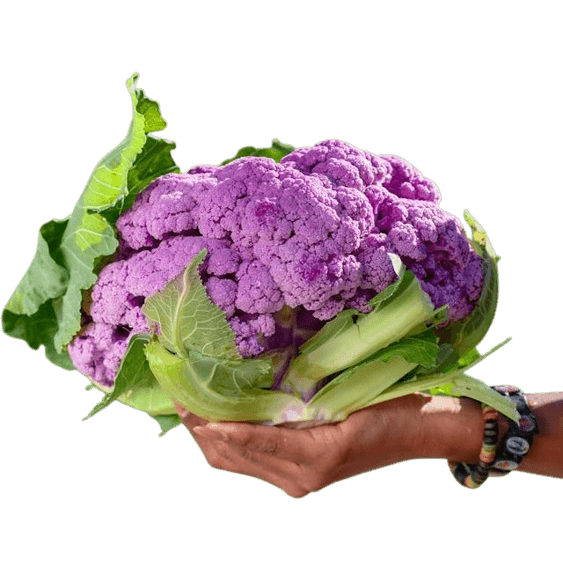
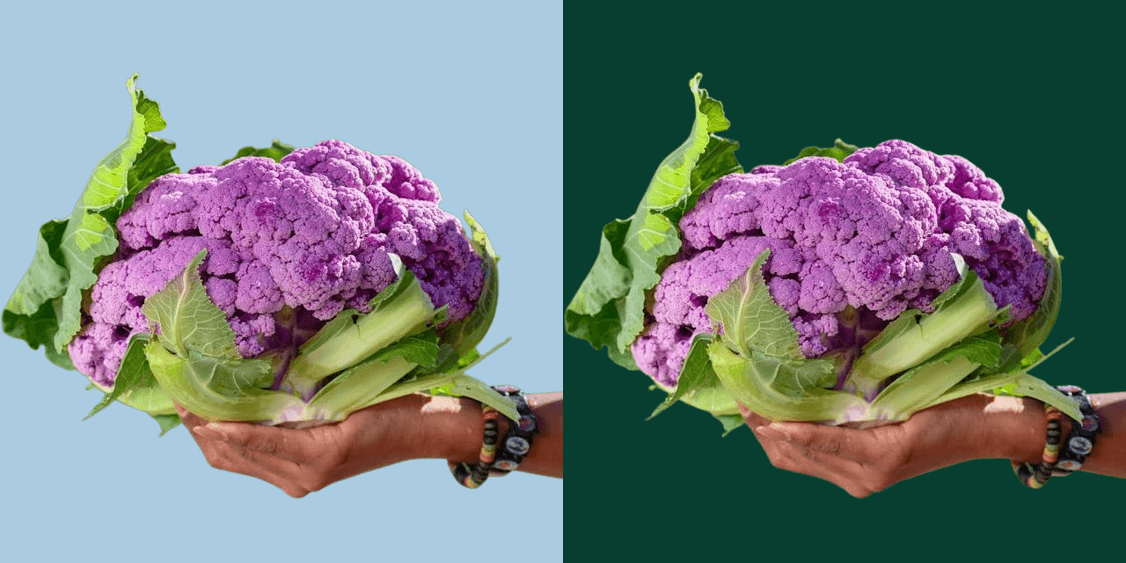
In this example, we upload a PNG image of purple cauliflower held in hands, which will be used on a farming website. To ensure the image looks equally good across different site blocks, we test it against two corporate brand colors: #ABCBE1 (light blue) and #083E2F (dark green). We arrange the previews horizontally so the image can be compared side by side. The result clearly shows that the PNG image maintains its quality and visibility on both light and dark backgrounds. (Source: Pexels.)
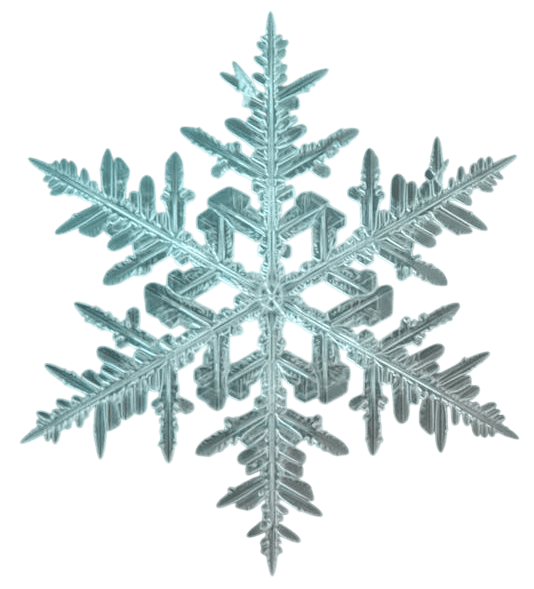
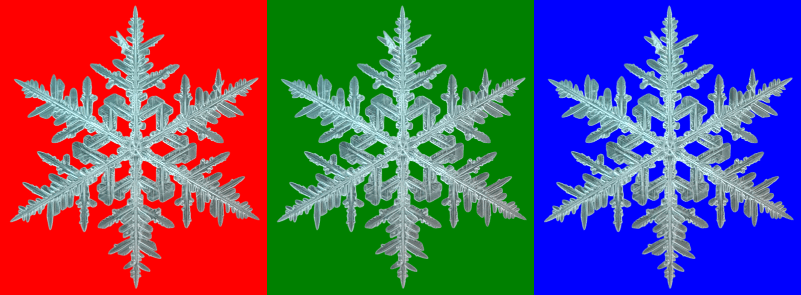
This example tests a transparent snowflake sticker PNG against three primary background colors: red, green, and blue. Based on the sticker's appearance on these colors, we can plan the cover color for holiday greeting cards. Visually, the sticker is most contrasting on the red background, most monochromatic on the green, and most natural on the blue. To prevent the output image from being too large, we apply a 50% scaling percentage to each PNG tile. (Source: Pexels.)
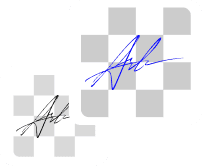
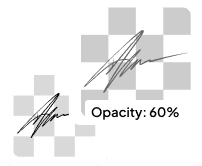
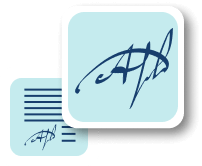
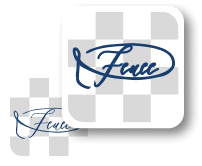
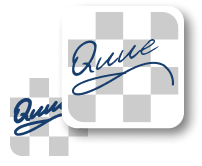
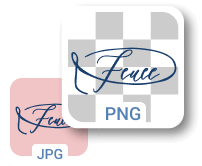
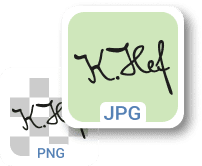
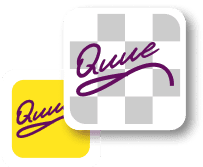
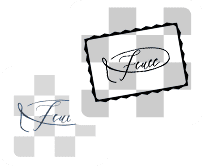
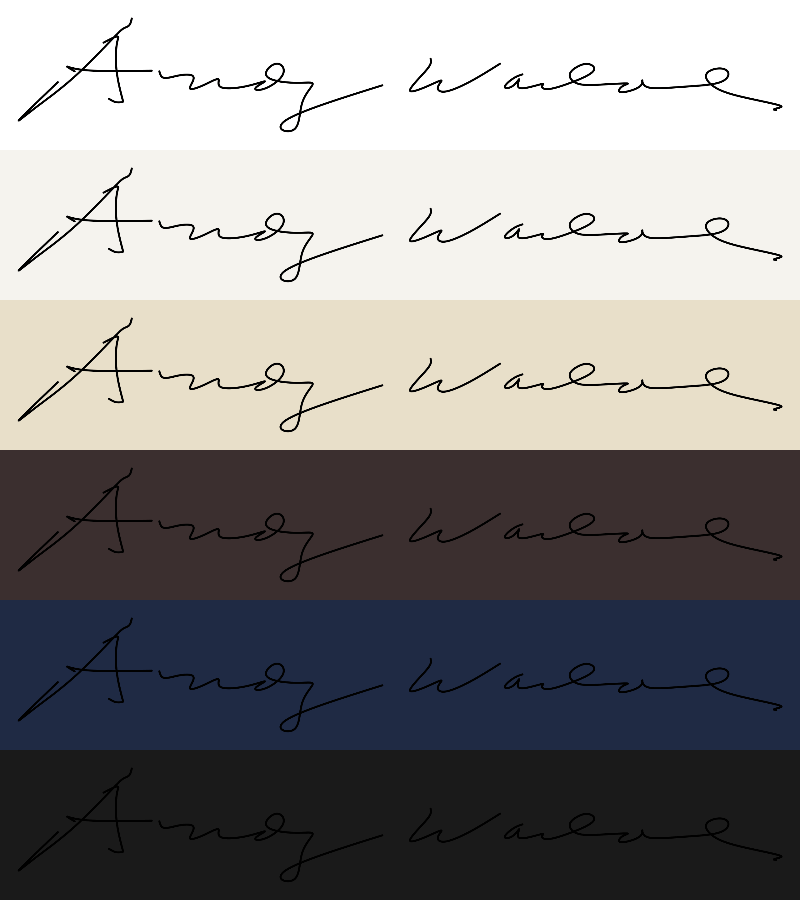
In this example, we preview an electronic PNG signature of Andy Warhol on six different types of parchment paper. We input six distinct paper colors using RGB codes and generate a vertical sequence of the PNG signature tiles. As shown, the first three signatures placed on light parchment tones are clearly readable, while the subsequent three colors, which are dark, make the signature difficult to distinguish. (Source: Wikipedia.)

This example checks how the Airbnb logo PNG appears on black, white, and gray backgrounds. The previews are stacked vertically with 20px padding and 20px gaps between them. The test clearly shows that the logo works best on white or black, while gray provides a less distinct contrast. (Source: Wikipedia.)


In this example, we try to find the best white background tint for an ID card icon. We generate four variations of near-white backgrounds (seashell, honeydew, lavenderblush, and azure). We add a 1-pixel gap and padding, using a black canvas background to visually separate each PNG. Side-by-side comparison shows that warm tones (seashell, lavenderblush) cause blending, while cooler tones (honeydew, azure) provide stronger contrast. (Source: Wikipedia.)


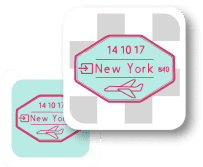
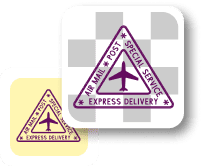
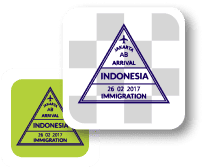
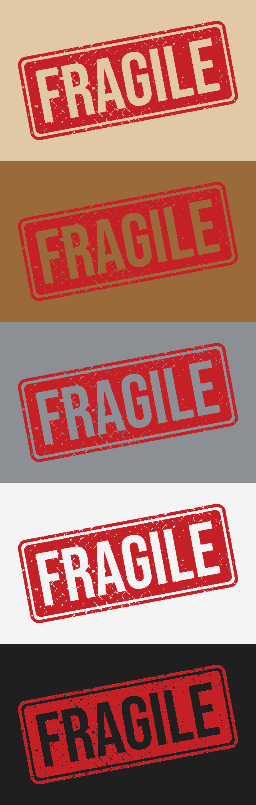
In this example, we place a transparent "FRAGILE" stamp PNG on five different box colors to evaluate stamp visibility. We observe that the stamp is least visible on the sienna-like color (#9B6A3A). Based on this result, we recommend using a stamp with a different brightness for boxes of that color to ensure clear visibility. (Source: Vecteezy.com.)

Edit a PNG in your browser.
Compare two or more PNG images.
Convert a PNG image to an AV1 image (AVIF).
Convert an AV1 image (AVIF) to a PNG image.
Convert a PNG image to a High Efficiency Image File (HEIF).
Convert a Hide Efficiency Image File (HEIF) to a PNG image.
Convert a PNG image to an ICO icon.
Convert a PNG image to a TIFF image.
Convert a TIFF image to a PNG image.
Convert a PNG image to a PIK image.
Convert a PIK image to a PNG image.
Convert a PNG image to a PPM image.
Convert a PPM image to a PNG image.
Convert a PNG image to a BPG image.
Convert a BPG image to a PNG image.
Convert a PNG image to a FLIF image.
Convert a FLIF image to a PNG image.
Convert a PNG image to a Paint.net file.
Convert a Paint.net file to a PNG image.
Convert a PNG image to a Photoshop file.
Convert a Photoshop file to a PNG image.
Convert a PNG image to an SVG image.
Convert a PNG image to an PDF document.
Convert a PDF document to a PNG image (or multiple images).
Convert a PNG image to an EPS file.
Convert an EPS file to a PNG image (or multiple images).
Convert a PNG image to a JFIF image.
Convert a JFIF image to a PNG image.
Convert a PNG image to raw RGB values.
Convert RGB values to a PNG image.
Convert a PNG image to raw BGR values.
Convert BGR values to a PNG image.
Convert a PNG image to raw RGBA values.
Convert RGBA values to a PNG image.
Convert a PNG image to raw BGRA values.
Convert BGRA values to a PNG image.
Convert multiple PNGs to a GIF animation.
Convert an APNG animation to a GIF image.
Convert a GIF animation to an APNG image.
Convert an APNG image to a Webp image.
Convert a Webp image to an APNG image.
Convert an APNG image to an MP4 video.
Convert an MP4 video to an APNG image.
Convert an APNG image to an AVI video.
Convert an AVI video to an APNG image.
Convert an APNG image to a WMV video.
Convert an WMV video to an APNG image.
Extract all frames from an APNG image.
Play a PNG animation (APNG) frame by frame.
Change the playback speed of an animated PNG (APNG).
Change how many times an animated PNG loops.
Reverse the order of frames in an animated PNG (APNG).
Created animated PNGs (APNGs) from input images.
Check if the given PNG file is an animated PNG file (APNG).
Create a sprite sheet from all animated PNG (APNG) frames.
Create an animated PNG (APNG) from a sprite sheet.
Create Excel art from a PNG image.
Break a PNG image into multiple pieces.
Generate a slideshow animation from multiple PNGs.
Generate a mosaic wall from multiple PNGs.
Convert a PNG into a hexagonal grid of pixels.
Convert a PNG into a triangular grid of pixels.
Create a Voronoi diagram from a PNG image.
Darken PNG corners compared to its center.
Create multiple reflections of a PNG.
Apply a Bayer filter on a PNG.
Make a PNG look like it was taken via night vision goggles.
Make a PNG look like it's spherical.
Run a PNG through the Mobius Transform.
Convert between RGB, CMYK, HSV, and HSL color spaces.
Remove dithering from a PNG image.
Convert a PNG to an ASCII art image.
Convert a PNG to an ANSI art image.
Convert ANSI art to a PNG image.
Convert a PNG to a Braille art image.
Convert Braille art to a PNG image.
Increase the quality of a PNG image.
Extract a 2d slice from a PNG.
Create a PNG that contains all possible RGB colors.
Find all textual information in a PNG image and extract it.
Given any 2D PNG, add 3rd dimension to it.
Quickly erase text (labels, captions) from a PNG.
Quickly delete a watermark from a PNG.
Salvage a PNG that has bad bytes in it and doesn't open.
Conceal a secret message in a PNG image.
Update meta data of a PNG file.
Delete meta data from a PNG picture.
Check if the given file is a valid PNG without errors.
Subscribe to our updates. We'll let you know when we release new tools and features, and when we organize online workshops.
Enter your email here
We're Browserling — a friendly and fun cross-browser testing company powered by alien technology. At Browserling we love to make people's lives easier, so we created this collection of online PNG tools. We created the simplest possible user interface for our tools and they are now used by millions of users every month. Behind the scenes, our online PNG tools are actually powered by our web developer tools that we created over the last couple of years. Check them out!