World's simplest browser-based Portable Network Graphics (PNG) dark pixel mask generator. Just import your PNG image into the editor on the left, and you will instantly get a two-color mask that shows which parts of the image are dark on the right. In the options, you can control how dark pixels are detected, choose colors of the mask, preserve transparent areas, and analyze pixel distribution. Free, quick, and very powerful. Created with love by team Browserling.
World's simplest browser-based Portable Network Graphics (PNG) dark pixel mask generator. Just import your PNG image into the editor on the left, and you will instantly get a two-color mask that shows which parts of the image are dark on the right. In the options, you can control how dark pixels are detected, choose colors of the mask, preserve transparent areas, and analyze pixel distribution. Free, quick, and very powerful. Created with love by team Browserling.

This browser-based utility creates a mask that isolates the darkest regions of a PNG image. By analyzing the lightness (L) component of the HSL color model, the tool segments pixels based on their proximity to pure black. This technique is commonly used for creating occlusion maps and shadow stencils or identifying underexposed areas in photography. The lightness (L) parameter, which ranges from 0% (completely dark) to 100% (fully bright), can be specified in the options. By default, it is set to 10%, so only pixels with lightness between 0% and 10% are marked as dark. Raising the threshold expands the mask to include midtones and eventually lighter shades. The output mask uses two customizable colors: one to represent dark pixels and another for non-dark (light) pixels. In "Binary Color Mask" mode, the program replaces every pixel in the PNG with one of these two solid fills. If you choose the "Fill Dark Areas" mode, the tool overlays a solid color only onto shadows, leaving the original light regions untouched. In the "Fill Light Areas" mode, the program does the opposite, covering all light parts with a solid color while preserving the original dark details of the image. If the input PNG contains transparency, the mask can preserve it as well. When the "Ignore Transparent Areas" option is enabled, fully transparent regions remain transparent in the output mask instead of being treated as dark pixels. Alongside mask generation, the tool provides a real-time statistical breakdown. It reports the total number of pixels in the image, as well as the exact count and percentage of dark and non-dark pixels. Png-abulous!
This browser-based utility creates a mask that isolates the darkest regions of a PNG image. By analyzing the lightness (L) component of the HSL color model, the tool segments pixels based on their proximity to pure black. This technique is commonly used for creating occlusion maps and shadow stencils or identifying underexposed areas in photography. The lightness (L) parameter, which ranges from 0% (completely dark) to 100% (fully bright), can be specified in the options. By default, it is set to 10%, so only pixels with lightness between 0% and 10% are marked as dark. Raising the threshold expands the mask to include midtones and eventually lighter shades. The output mask uses two customizable colors: one to represent dark pixels and another for non-dark (light) pixels. In "Binary Color Mask" mode, the program replaces every pixel in the PNG with one of these two solid fills. If you choose the "Fill Dark Areas" mode, the tool overlays a solid color only onto shadows, leaving the original light regions untouched. In the "Fill Light Areas" mode, the program does the opposite, covering all light parts with a solid color while preserving the original dark details of the image. If the input PNG contains transparency, the mask can preserve it as well. When the "Ignore Transparent Areas" option is enabled, fully transparent regions remain transparent in the output mask instead of being treated as dark pixels. Alongside mask generation, the tool provides a real-time statistical breakdown. It reports the total number of pixels in the image, as well as the exact count and percentage of dark and non-dark pixels. Png-abulous!
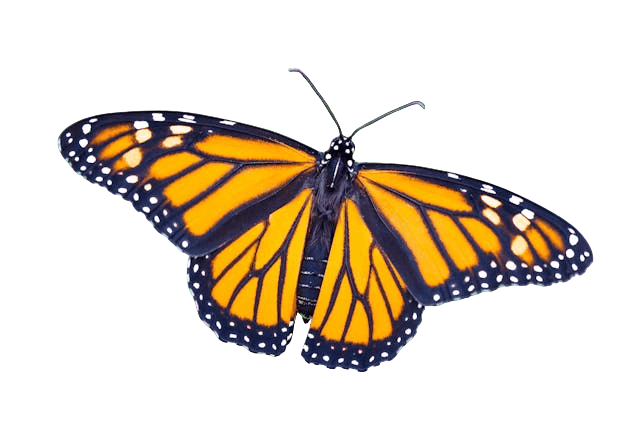
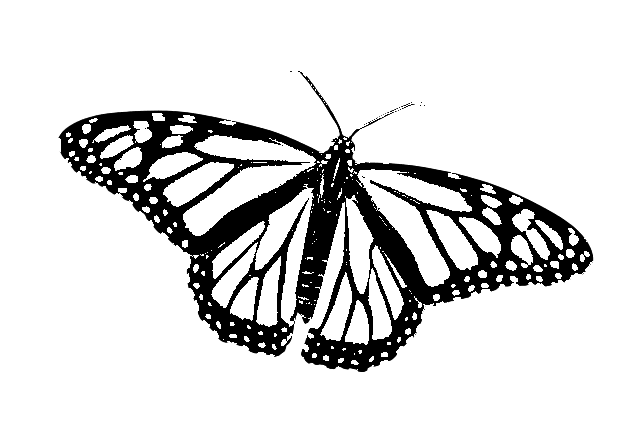
In this example, we adjust the lightness threshold to 40% to clearly outline the dark pattern of a butterfly's wings. Pixels darker than this value are isolated into a dark pixel mask (black), while lighter areas appear as light pixels in the mask (white). Since the original PNG has a transparent background and transparency preservation is enabled, the background remains transparent in the mask, keeping the black-and-white butterfly shape well-defined. (Source: Pexels.)
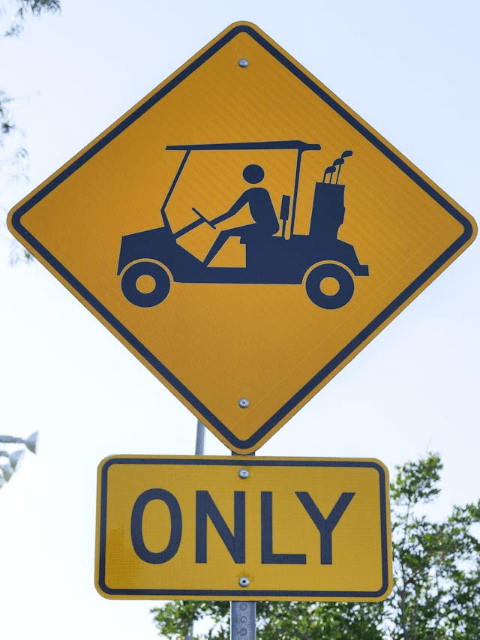
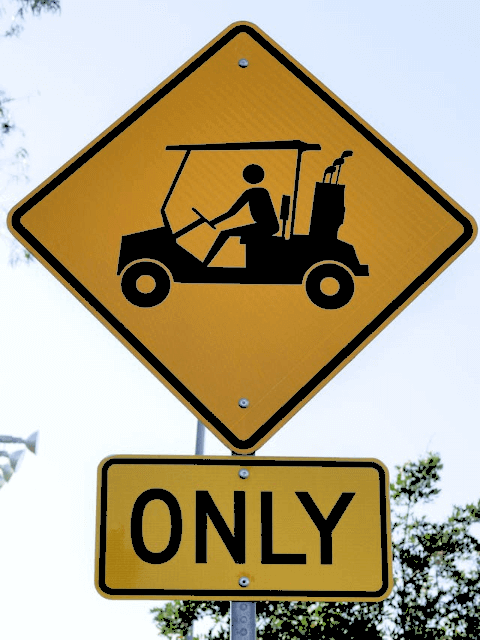
In this example, we improve the visibility of a yellow road sign by recoloring only its darkest elements. We set the lightness threshold to 30%, which captures the slightly faded black symbols and outlines on the sign, as well as a few darker pixels from nearby trees. These dark pixels are replaced with a solid black fill, while all lighter pixels remain unchanged. This increases contrast and makes the road sign much easier to read in the resulting PNG. (Source: Pexels.)
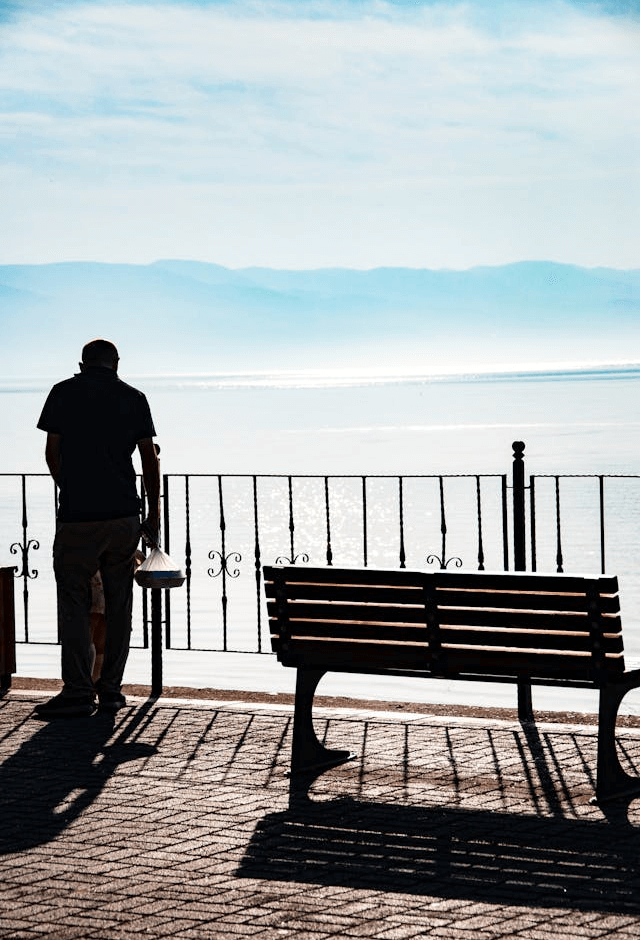
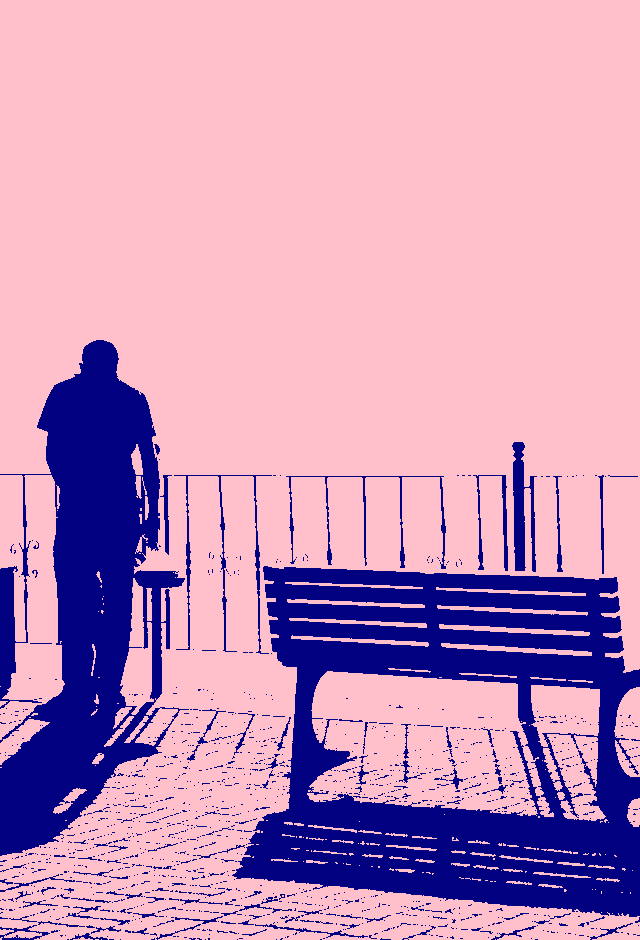
In this example, we isolate shadowed regions in a PNG image. With the threshold set to 20%, the person, bench, fence, and paving outlines form strong silhouettes against the lighter background. We apply custom colors by displaying dark pixels in navy and non-dark pixels in pink, creating a clear contrast that separates shaded areas from the rest of the image. (Source: Pexels.)
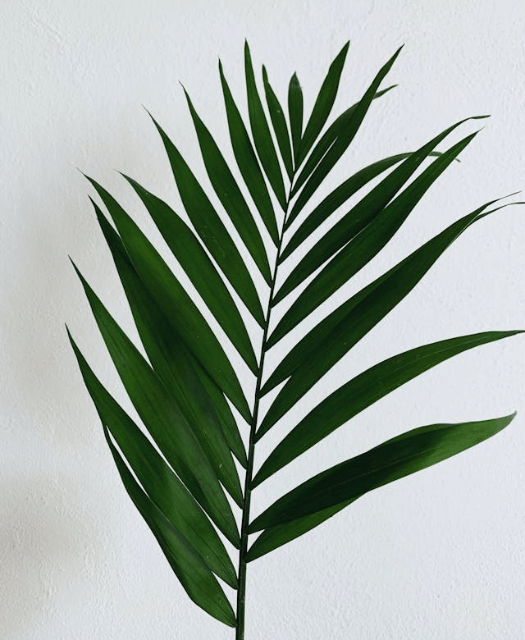
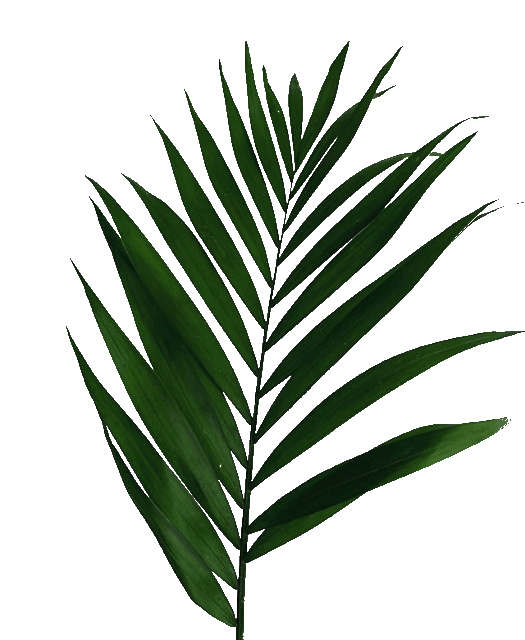
In this example, we apply the mask only to the non-dark areas of the PNG image. We separate the deep green tones of the palm leaf from the light gray background and replace all light pixels with transparency. The dark pixels of the palm leaf remain unchanged. This technique provides a quick way to extract dark objects from a light background and create a transparent PNG image. (Source: Pexels.)
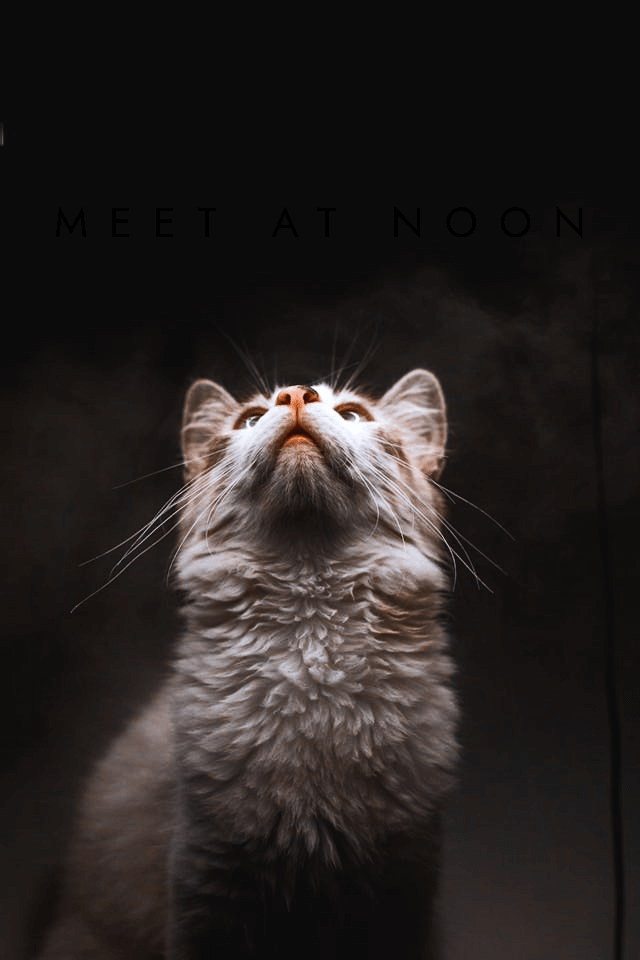
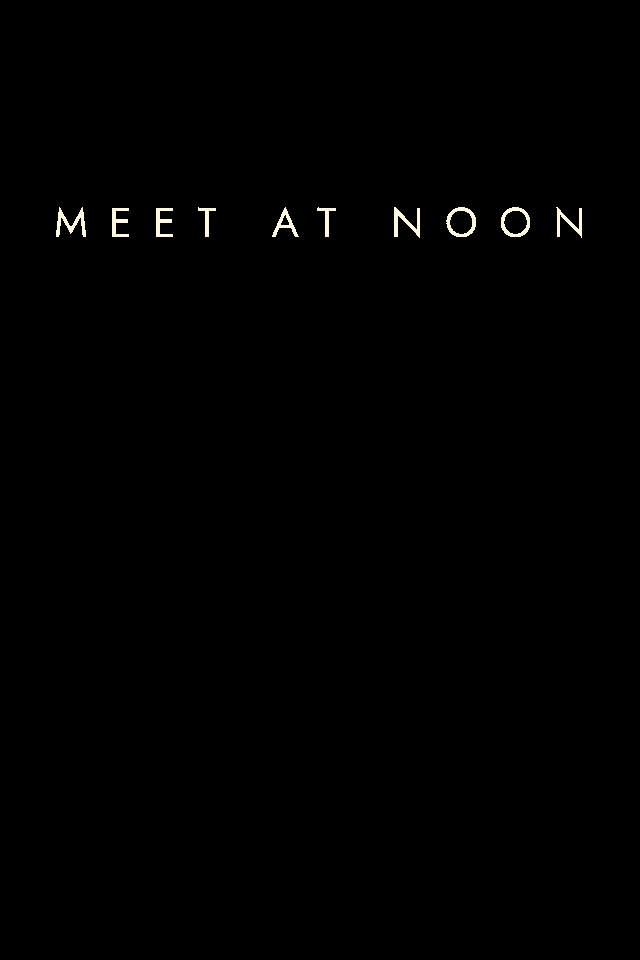
In this example, we load a PNG image of a cat that hides a secret message in its darkest pixels. When we set the lightness threshold to 0%, only pure black pixels are picked up by the mask. As a result, a hidden message reading "MEET AT NOON" appears just above the cat's nose, pointing to the exact time of a secret meeting. (Source: Pexels.)
Edit a PNG in your browser.
Compare two or more PNG images.
Convert a PNG image to an AV1 image (AVIF).
Convert an AV1 image (AVIF) to a PNG image.
Convert a PNG image to a High Efficiency Image File (HEIF).
Convert a Hide Efficiency Image File (HEIF) to a PNG image.
Convert a PNG image to an ICO icon.
Convert a PNG image to a TIFF image.
Convert a TIFF image to a PNG image.
Convert a PNG image to a PIK image.
Convert a PIK image to a PNG image.
Convert a PNG image to a PPM image.
Convert a PPM image to a PNG image.
Convert a PNG image to a BPG image.
Convert a BPG image to a PNG image.
Convert a PNG image to a FLIF image.
Convert a FLIF image to a PNG image.
Convert a PNG image to a Paint.net file.
Convert a Paint.net file to a PNG image.
Convert a PNG image to a Photoshop file.
Convert a Photoshop file to a PNG image.
Convert a PNG image to an SVG image.
Convert a PNG image to an PDF document.
Convert a PDF document to a PNG image (or multiple images).
Convert a PNG image to an EPS file.
Convert an EPS file to a PNG image (or multiple images).
Convert a PNG image to a JFIF image.
Convert a JFIF image to a PNG image.
Convert a PNG image to raw RGB values.
Convert RGB values to a PNG image.
Convert a PNG image to raw BGR values.
Convert BGR values to a PNG image.
Convert a PNG image to raw RGBA values.
Convert RGBA values to a PNG image.
Convert a PNG image to raw BGRA values.
Convert BGRA values to a PNG image.
Convert multiple PNGs to a GIF animation.
Convert an APNG animation to a GIF image.
Convert a GIF animation to an APNG image.
Convert an APNG image to a Webp image.
Convert a Webp image to an APNG image.
Convert an APNG image to an MP4 video.
Convert an MP4 video to an APNG image.
Convert an APNG image to an AVI video.
Convert an AVI video to an APNG image.
Convert an APNG image to a WMV video.
Convert an WMV video to an APNG image.
Extract all frames from an APNG image.
Play a PNG animation (APNG) frame by frame.
Change the playback speed of an animated PNG (APNG).
Change how many times an animated PNG loops.
Reverse the order of frames in an animated PNG (APNG).
Created animated PNGs (APNGs) from input images.
Check if the given PNG file is an animated PNG file (APNG).
Create a sprite sheet from all animated PNG (APNG) frames.
Create an animated PNG (APNG) from a sprite sheet.
Create Excel art from a PNG image.
Break a PNG image into multiple pieces.
Generate a slideshow animation from multiple PNGs.
Generate a mosaic wall from multiple PNGs.
Convert a PNG into a hexagonal grid of pixels.
Convert a PNG into a triangular grid of pixels.
Create a Voronoi diagram from a PNG image.
Darken PNG corners compared to its center.
Create multiple reflections of a PNG.
Apply a Bayer filter on a PNG.
Make a PNG look like it was taken via night vision goggles.
Make a PNG look like it's spherical.
Run a PNG through the Mobius Transform.
Convert between RGB, CMYK, HSV, and HSL color spaces.
Remove dithering from a PNG image.
Convert a PNG to an ASCII art image.
Convert a PNG to an ANSI art image.
Convert ANSI art to a PNG image.
Convert a PNG to a Braille art image.
Convert Braille art to a PNG image.
Increase the quality of a PNG image.
Extract a 2d slice from a PNG.
Create a PNG that contains all possible RGB colors.
Find all textual information in a PNG image and extract it.
Given any 2D PNG, add 3rd dimension to it.
Quickly erase text (labels, captions) from a PNG.
Quickly delete a watermark from a PNG.
Salvage a PNG that has bad bytes in it and doesn't open.
Conceal a secret message in a PNG image.
Update meta data of a PNG file.
Delete meta data from a PNG picture.
Check if the given file is a valid PNG without errors.
Subscribe to our updates. We'll let you know when we release new tools and features, and when we organize online workshops.
Enter your email here
We're Browserling — a friendly and fun cross-browser testing company powered by alien technology. At Browserling we love to make people's lives easier, so we created this collection of online PNG tools. We created the simplest possible user interface for our tools and they are now used by millions of users every month. Behind the scenes, our online PNG tools are actually powered by our web developer tools that we created over the last couple of years. Check them out!