World's simplest browser-based Portable Network Graphics (PNG) color mask generator. Just import your PNG image into the editor on the left, and you will instantly get a mask that shows which pixels contain color data on the right. In the options, you can adjust how sensitive the color detection is, change how the mask looks, and see how many color pixels the image contains. Free, quick, and very powerful. Created with love by team Browserling.
World's simplest browser-based Portable Network Graphics (PNG) color mask generator. Just import your PNG image into the editor on the left, and you will instantly get a mask that shows which pixels contain color data on the right. In the options, you can adjust how sensitive the color detection is, change how the mask looks, and see how many color pixels the image contains. Free, quick, and very powerful. Created with love by team Browserling.
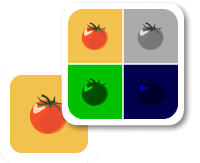
This browser-based program examines a PNG image and creates a mask that shows where real color appears. A pixel is considered a color pixel when its red, green, and blue (RGB) values are not the same. If all three values are equal, the pixel is grayscale, meaning it has no color hue, only brightness. The mask clearly separates these two groups, so you can see which parts of the PNG contain color. The "Color Sensitivity" option lets you control how strict the detection is. At sensitivity 0, every pixel with unequal RGB values is marked as color. Increasing the value makes the filter more selective: near-gray tones like rgb(240, 240, 241) or rgb(1, 2, 0) can be treated as grayscale because their values are almost identical. This helps ignore tiny color shifts and focus on areas with noticeable color. You can choose how the mask is displayed. The "Mask with Two Colors" mode shows colored pixels in one shade and grayscale pixels in another. The "Replace Color Areas" mode fills only colored pixels with the selected mask color, leaving grayscale pixels unchanged. The "Replace Gray Areas" mode does the opposite, filling grayscale pixels while keeping colored ones as they are. By default, color pixels appear in black and grayscale pixels in white, but you can change them to any colors you prefer. The "Keep Original Transparency" option controls how transparent pixels are displayed in the mask. When enabled, transparent and semi-transparent pixels appear in the mask with their original alpha values preserved. When disabled, transparent pixels are rendered using the color assigned to grayscale areas, since a fully transparent pixel has an RGBA value of rgba(0, 0, 0, 0). Also, you can see the total pixel count in the options, along with the exact number and percentage of colored versus grayscale pixels. Png-abulous!
This browser-based program examines a PNG image and creates a mask that shows where real color appears. A pixel is considered a color pixel when its red, green, and blue (RGB) values are not the same. If all three values are equal, the pixel is grayscale, meaning it has no color hue, only brightness. The mask clearly separates these two groups, so you can see which parts of the PNG contain color. The "Color Sensitivity" option lets you control how strict the detection is. At sensitivity 0, every pixel with unequal RGB values is marked as color. Increasing the value makes the filter more selective: near-gray tones like rgb(240, 240, 241) or rgb(1, 2, 0) can be treated as grayscale because their values are almost identical. This helps ignore tiny color shifts and focus on areas with noticeable color. You can choose how the mask is displayed. The "Mask with Two Colors" mode shows colored pixels in one shade and grayscale pixels in another. The "Replace Color Areas" mode fills only colored pixels with the selected mask color, leaving grayscale pixels unchanged. The "Replace Gray Areas" mode does the opposite, filling grayscale pixels while keeping colored ones as they are. By default, color pixels appear in black and grayscale pixels in white, but you can change them to any colors you prefer. The "Keep Original Transparency" option controls how transparent pixels are displayed in the mask. When enabled, transparent and semi-transparent pixels appear in the mask with their original alpha values preserved. When disabled, transparent pixels are rendered using the color assigned to grayscale areas, since a fully transparent pixel has an RGBA value of rgba(0, 0, 0, 0). Also, you can see the total pixel count in the options, along with the exact number and percentage of colored versus grayscale pixels. Png-abulous!
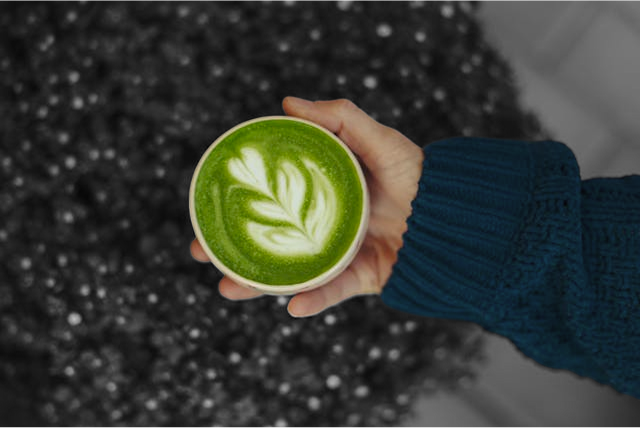
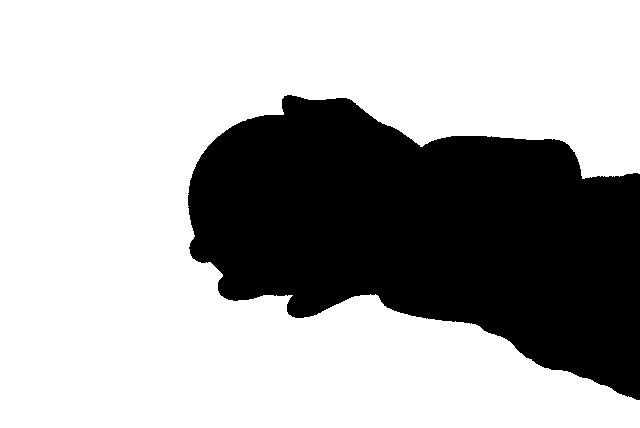
In this example, we find color pixels in a PNG photo of a hand holding a matcha latte. We set the color sensitivity to 0 to classify all pixels with unequal RGB values as colored. The resulting black-and-white mask clearly shows that the matcha drink and the hand are made of colored pixels, while the background is entirely grayscale. The analysis confirms that 31.57% of the image (86,488 pixels) contains color data, while the remaining 68.43% is strictly neutral. (Source: Pexels.)
In this example, we recolor only the detected color pixels using the "Replace Color Areas" mode. With the color sensitivity set to 40, black, gray, and white tones of the spiral notebook are classified as neutral, while the bright background is treated as colored. The program fills all background pixels with a solid sandybrown color defined in the options, while the notebook itself keeps its original look in the mask. (Source: Pexels.)


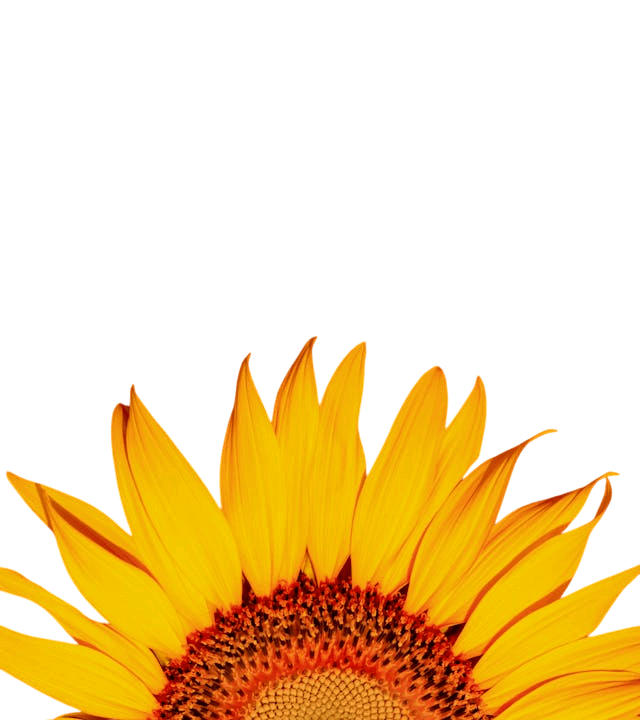
In this example, we check whether an image contains strong, saturated colors or only subtle tints. We use a bright sunflower PNG and gradually increase the sensitivity to detect near-gray tones. Even at a high sensitivity of 33, all pixels are still classified as colored, showing that the image is highly vivid and contains almost no neutral shades. The PNG also includes transparency, and with the "Keep Original Transparency" option enabled, transparent pixels remain transparent in the mask. (Source: Pexels.)

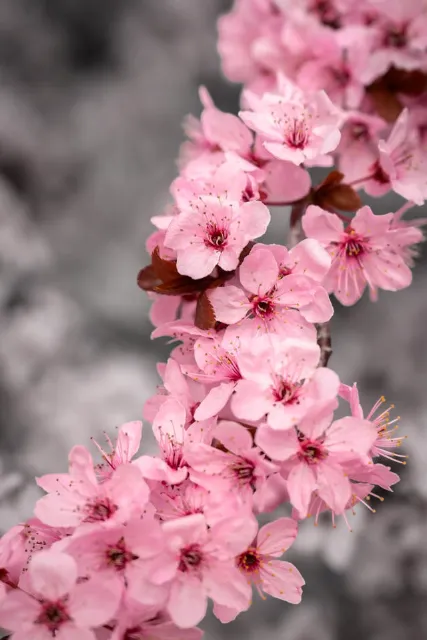
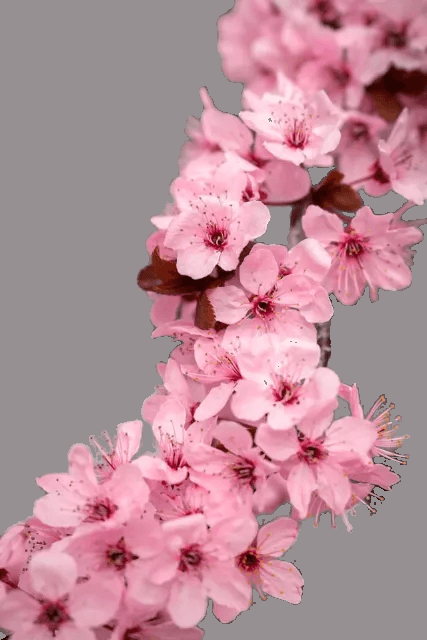
In this example, we preserve the original appearance of colored pixels while filling near-gray areas with a solid mask color. We set the color sensitivity to 18 and carefully separate the delicate pink cherry blossoms from their colorless surroundings. (Source: Pexels.)
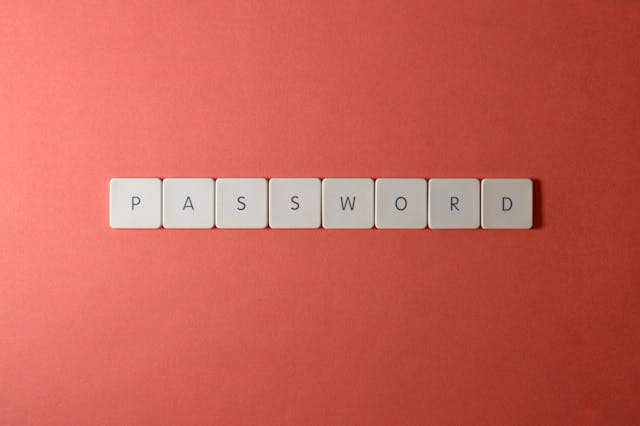
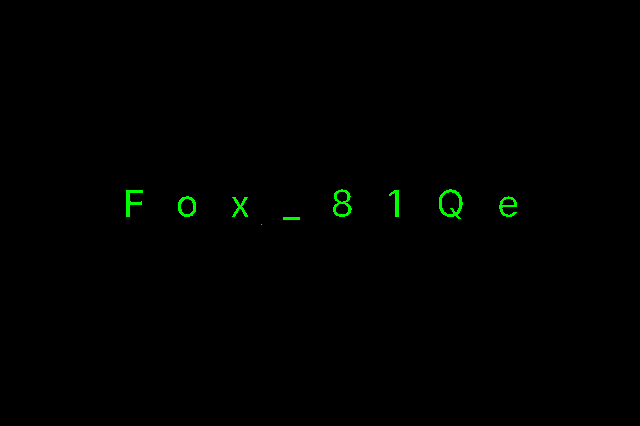
In this example, we use a color pixel mask to uncover a hidden message inside a PNG image made of keyboard buttons spelling the word "PASSWORD". We generate the mask with sensitivity set to 0, which separates colored pixels from grayscale ones. Although the image looks ordinary at first glance, the positions of the grayscale pixels form the characters of the real password. This separation makes the hidden password clearly visible. (Source: Pexels.)
Edit a PNG in your browser.
Compare two or more PNG images.
Convert a PNG image to an AV1 image (AVIF).
Convert an AV1 image (AVIF) to a PNG image.
Convert a PNG image to a High Efficiency Image File (HEIF).
Convert a Hide Efficiency Image File (HEIF) to a PNG image.
Convert a PNG image to an ICO icon.
Convert a PNG image to a TIFF image.
Convert a TIFF image to a PNG image.
Convert a PNG image to a PIK image.
Convert a PIK image to a PNG image.
Convert a PNG image to a PPM image.
Convert a PPM image to a PNG image.
Convert a PNG image to a BPG image.
Convert a BPG image to a PNG image.
Convert a PNG image to a FLIF image.
Convert a FLIF image to a PNG image.
Convert a PNG image to a Paint.net file.
Convert a Paint.net file to a PNG image.
Convert a PNG image to a Photoshop file.
Convert a Photoshop file to a PNG image.
Convert a PNG image to an SVG image.
Convert a PNG image to an PDF document.
Convert a PDF document to a PNG image (or multiple images).
Convert a PNG image to an EPS file.
Convert an EPS file to a PNG image (or multiple images).
Convert a PNG image to a JFIF image.
Convert a JFIF image to a PNG image.
Convert a PNG image to raw RGB values.
Convert RGB values to a PNG image.
Convert a PNG image to raw BGR values.
Convert BGR values to a PNG image.
Convert a PNG image to raw RGBA values.
Convert RGBA values to a PNG image.
Convert a PNG image to raw BGRA values.
Convert BGRA values to a PNG image.
Convert multiple PNGs to a GIF animation.
Convert an APNG animation to a GIF image.
Convert a GIF animation to an APNG image.
Convert an APNG image to a Webp image.
Convert a Webp image to an APNG image.
Convert an APNG image to an MP4 video.
Convert an MP4 video to an APNG image.
Convert an APNG image to an AVI video.
Convert an AVI video to an APNG image.
Convert an APNG image to a WMV video.
Convert an WMV video to an APNG image.
Extract all frames from an APNG image.
Play a PNG animation (APNG) frame by frame.
Change the playback speed of an animated PNG (APNG).
Change how many times an animated PNG loops.
Reverse the order of frames in an animated PNG (APNG).
Created animated PNGs (APNGs) from input images.
Check if the given PNG file is an animated PNG file (APNG).
Create a sprite sheet from all animated PNG (APNG) frames.
Create an animated PNG (APNG) from a sprite sheet.
Create Excel art from a PNG image.
Break a PNG image into multiple pieces.
Generate a slideshow animation from multiple PNGs.
Generate a mosaic wall from multiple PNGs.
Convert a PNG into a hexagonal grid of pixels.
Convert a PNG into a triangular grid of pixels.
Create a Voronoi diagram from a PNG image.
Darken PNG corners compared to its center.
Create multiple reflections of a PNG.
Apply a Bayer filter on a PNG.
Make a PNG look like it was taken via night vision goggles.
Make a PNG look like it's spherical.
Run a PNG through the Mobius Transform.
Convert between RGB, CMYK, HSV, and HSL color spaces.
Remove dithering from a PNG image.
Convert a PNG to an ASCII art image.
Convert a PNG to an ANSI art image.
Convert ANSI art to a PNG image.
Convert a PNG to a Braille art image.
Convert Braille art to a PNG image.
Increase the quality of a PNG image.
Extract a 2d slice from a PNG.
Create a PNG that contains all possible RGB colors.
Find all textual information in a PNG image and extract it.
Given any 2D PNG, add 3rd dimension to it.
Quickly erase text (labels, captions) from a PNG.
Quickly delete a watermark from a PNG.
Salvage a PNG that has bad bytes in it and doesn't open.
Conceal a secret message in a PNG image.
Update meta data of a PNG file.
Delete meta data from a PNG picture.
Check if the given file is a valid PNG without errors.
Subscribe to our updates. We'll let you know when we release new tools and features, and when we organize online workshops.
Enter your email here
We're Browserling — a friendly and fun cross-browser testing company powered by alien technology. At Browserling we love to make people's lives easier, so we created this collection of online PNG tools. We created the simplest possible user interface for our tools and they are now used by millions of users every month. Behind the scenes, our online PNG tools are actually powered by our web developer tools that we created over the last couple of years. Check them out!