World's simplest browser-based Portable Network Graphics (PNG) color-based mask generator. Just import your PNG image into the editor on the left, and you will instantly get a mask that marks pixels similar to the chosen color on the right. In the options, you can define one or multiple reference colors with individual tolerance levels, select the color-difference algorithm (Euclidean or Delta-E), control how pixels are displayed, preserve the original transparency, and review detailed pixel-matching statistics. Free, quick, and very powerful. Created with love by team Browserling.
World's simplest browser-based Portable Network Graphics (PNG) color-based mask generator. Just import your PNG image into the editor on the left, and you will instantly get a mask that marks pixels similar to the chosen color on the right. In the options, you can define one or multiple reference colors with individual tolerance levels, select the color-difference algorithm (Euclidean or Delta-E), control how pixels are displayed, preserve the original transparency, and review detailed pixel-matching statistics. Free, quick, and very powerful. Created with love by team Browserling.

This browser-based utility generates a color-based mask from a PNG image. It selects one or more colors and compares every pixel in the input image to the selected reference color(s). The tool measures color distance using the chosen algorithm and includes pixels within the specified similarity threshold, while excluding those that exceed it. In "Extract One Color" mode, the tool compares each pixel in the image to a single reference color using a single similarity threshold. For example, if the reference color is red and the threshold is 10%, pixels close to red (including slightly darker or lighter shades) will be included in the mask. In "Extract Multiple Colors" mode, the tool evaluates each pixel against several reference colors provided in the color list. Each line must follow the format "color/threshold", for example, "red/5%" and "blue/25%". You can click any pixel in the preview to automatically load its exact color value into the color field. The "Color Difference Algorithm" determines how similarity is computed. "Euclidean Distance in RGB" measures straight-line distance in the RGB color space and provides fast numerical comparison. "Delta-E Perceptual Difference" evaluates color difference in a perceptually uniform space, producing results that better align with human visual perception. When "Preserve Transparency" is enabled, the original alpha channel values of the input image are retained in the output mask. The output mask type defines how classified pixels are displayed. In "Two-tone Mask", pixels within the selected color range are painted with the "Matching Pixel Color", and all other pixels are painted with the "Non-matching Pixel Color". In "Fill Matches Only", only pixels within the selected range are colored. In "Fill Non-matches Only", only pixels outside the selected range are colored. Finally, the pixel analysis section reports the total pixel count, the number of found color pixels, the number of non-matching pixels, and their percentage distribution. Png-abulous!
This browser-based utility generates a color-based mask from a PNG image. It selects one or more colors and compares every pixel in the input image to the selected reference color(s). The tool measures color distance using the chosen algorithm and includes pixels within the specified similarity threshold, while excluding those that exceed it. In "Extract One Color" mode, the tool compares each pixel in the image to a single reference color using a single similarity threshold. For example, if the reference color is red and the threshold is 10%, pixels close to red (including slightly darker or lighter shades) will be included in the mask. In "Extract Multiple Colors" mode, the tool evaluates each pixel against several reference colors provided in the color list. Each line must follow the format "color/threshold", for example, "red/5%" and "blue/25%". You can click any pixel in the preview to automatically load its exact color value into the color field. The "Color Difference Algorithm" determines how similarity is computed. "Euclidean Distance in RGB" measures straight-line distance in the RGB color space and provides fast numerical comparison. "Delta-E Perceptual Difference" evaluates color difference in a perceptually uniform space, producing results that better align with human visual perception. When "Preserve Transparency" is enabled, the original alpha channel values of the input image are retained in the output mask. The output mask type defines how classified pixels are displayed. In "Two-tone Mask", pixels within the selected color range are painted with the "Matching Pixel Color", and all other pixels are painted with the "Non-matching Pixel Color". In "Fill Matches Only", only pixels within the selected range are colored. In "Fill Non-matches Only", only pixels outside the selected range are colored. Finally, the pixel analysis section reports the total pixel count, the number of found color pixels, the number of non-matching pixels, and their percentage distribution. Png-abulous!
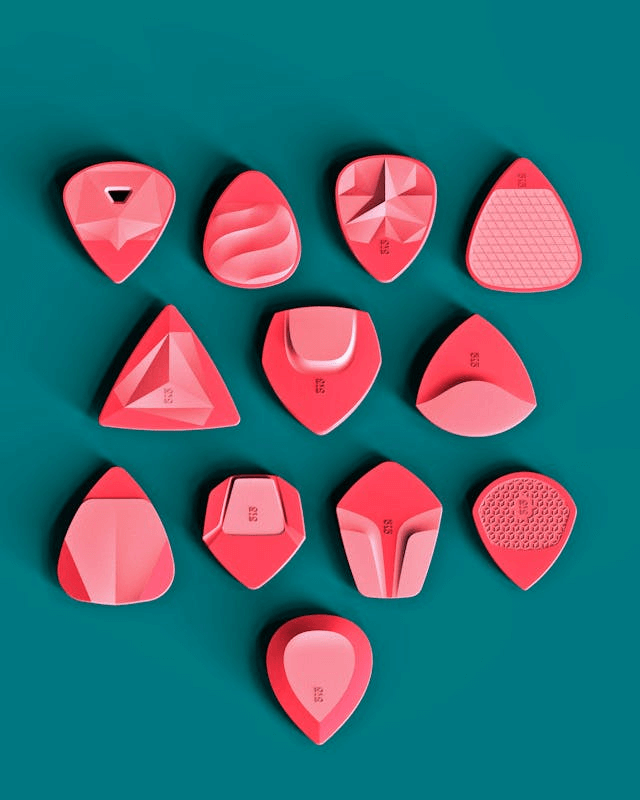
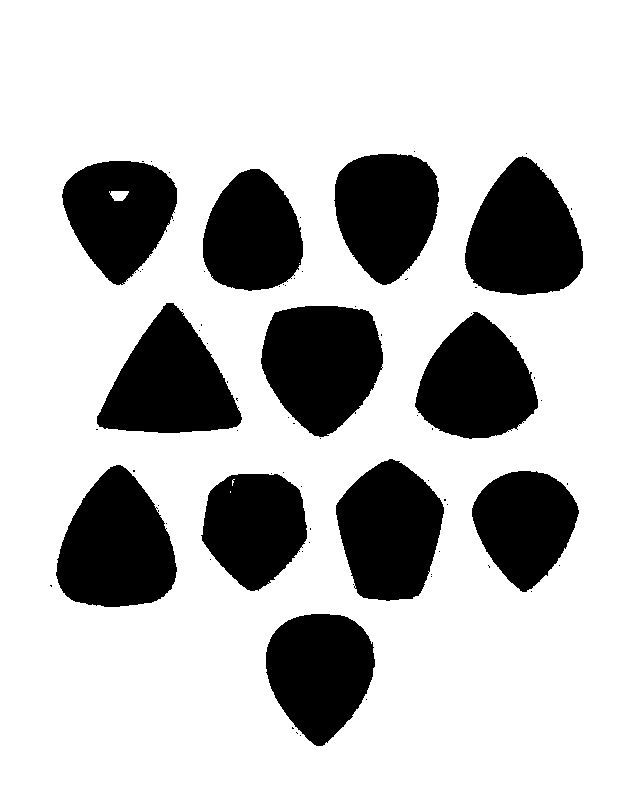
In this example, we isolate a single chosen color from a PNG and generate a two‑tone mask. We select the coral shade of the guitar pick as the reference color and apply a wide threshold of 55%. With this setting, we include many red‑pink variations, such as LightCoral, IndianRed, and Crimson, while excluding contrasting background colors like Teal. We then produce a mask that clearly separates the guitar picks (black fill) from the background (white fill). (Source: Pexels.)
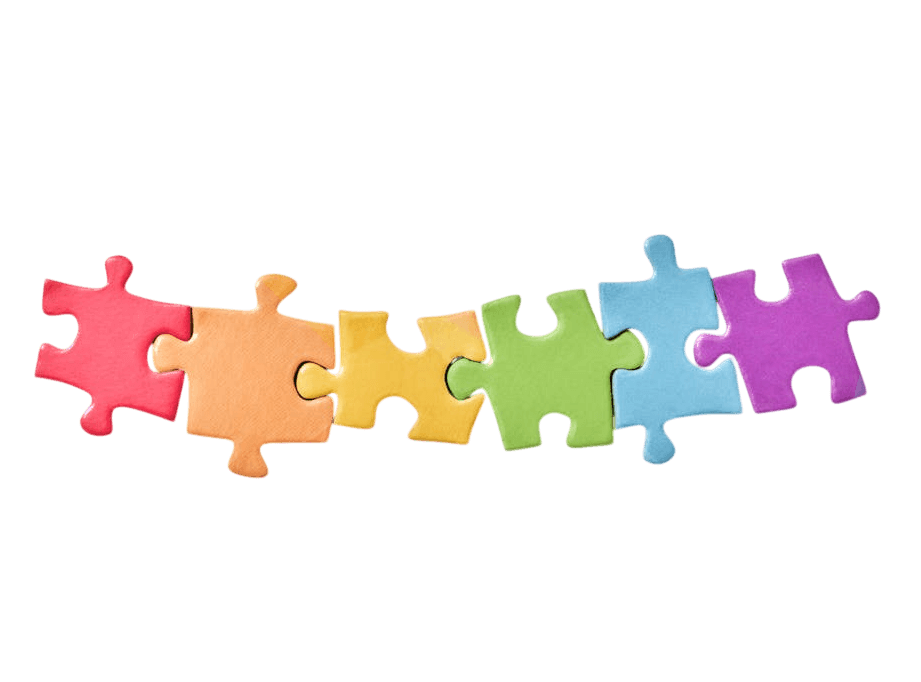
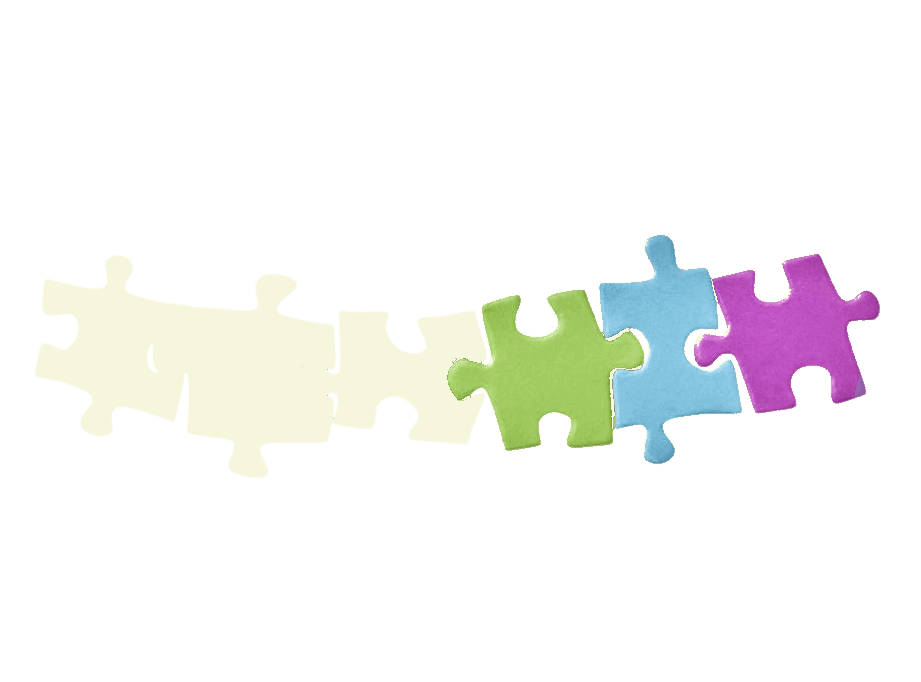
In this example, we generate a mask based on several colors. We switch to the "Extract Multiple Colors" mode and specify three shades corresponding to the green, light blue, and violet puzzle pieces. We use the "Delta‑E Perceptual Difference algorithm", which provides perceptually accurate color comparison, and set an individual threshold for each color to capture the correct puzzle pixels. We preserve the background transparency in the output mask, keep all detected green, blue, and violet pixels unchanged, and fill the remaining non‑matching pixels with a solid beige color. (Source: Pexels.)
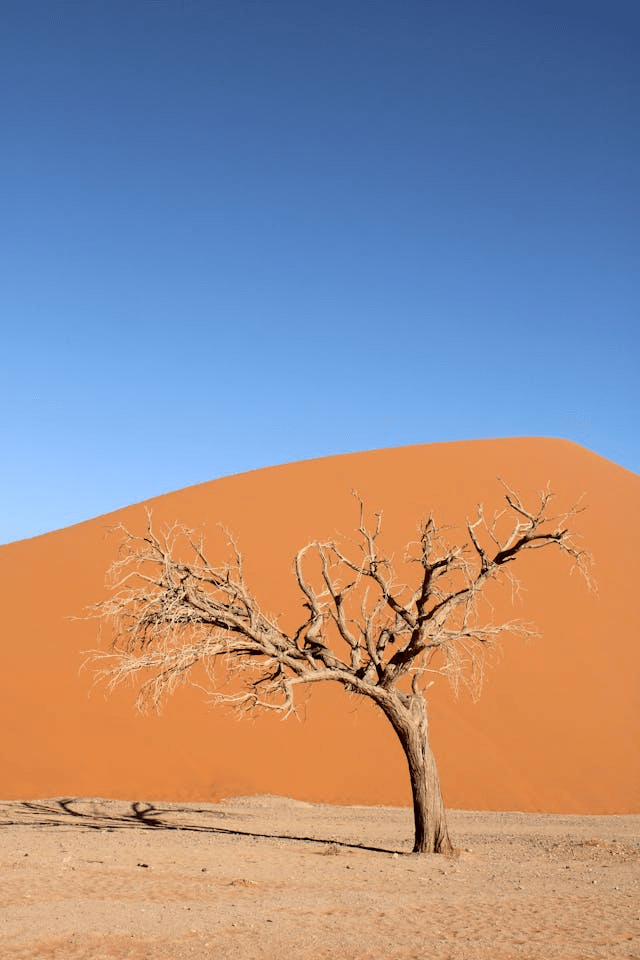
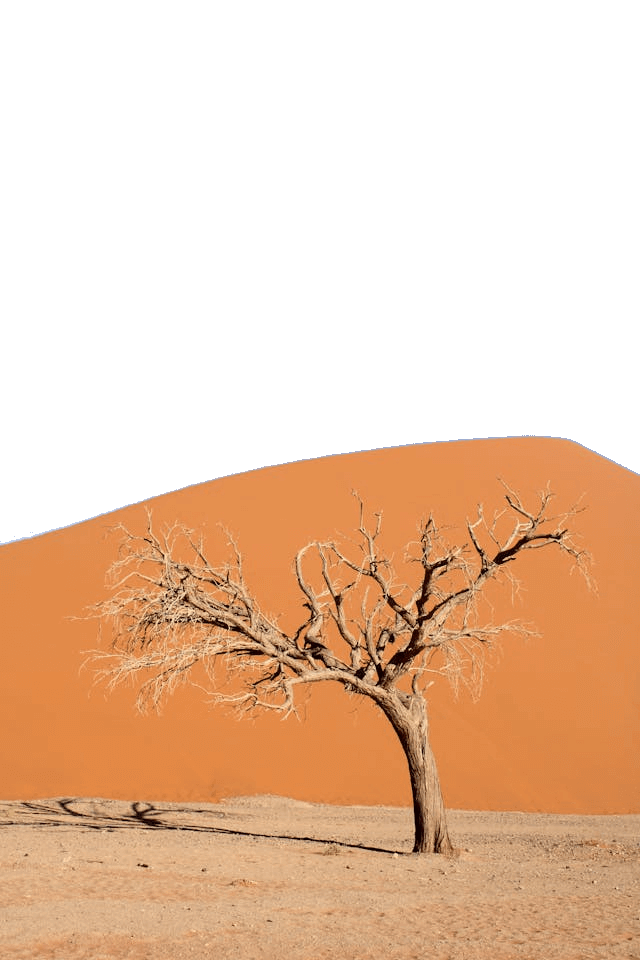
This example transforms a desert PNG image into a mask based on sky colors. We select several control colors from the sky gradient directly on the preview to capture the entire sky area. We then set matching pixels to transparent while keeping the sand pixels opaque. The result is a PNG mask with a clear desert foreground and a fully transparent sky. (Source: Pexels.)
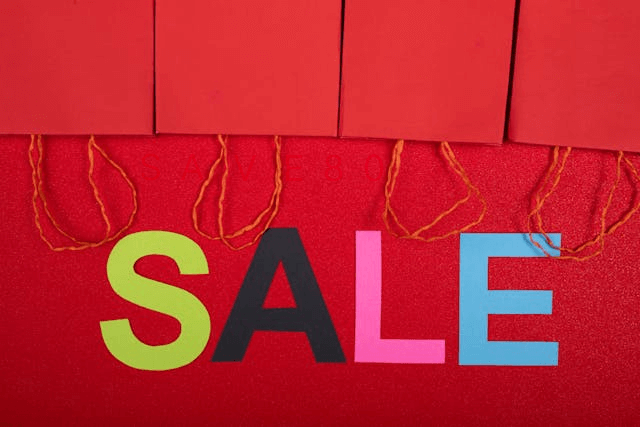
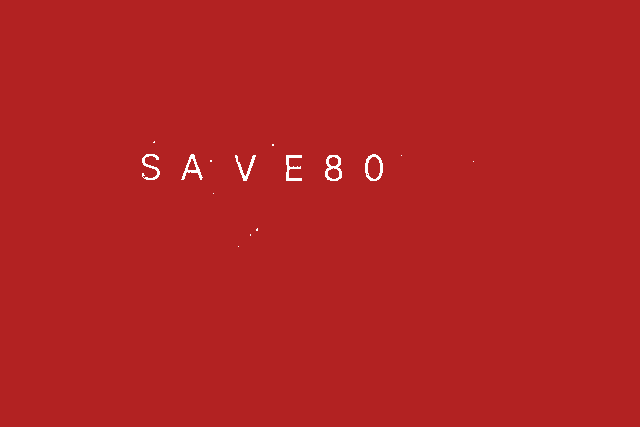
In this example, we upload a sale banner PNG that hides a secret voucher code. Only discount seekers will be able to find the 80% discount hidden in this image. To see the voucher, we extract the purest red pixels with a 12% threshold. This threshold helps us isolate the clean red tones while filtering out less saturated reds. We apply a two‑tone mask with white and firebrick colors, revealing the hidden voucher text "SAVE80" for an 80% discount. (Source: Pexels.)
Edit a PNG in your browser.
Compare two or more PNG images.
Convert a PNG image to an AV1 image (AVIF).
Convert an AV1 image (AVIF) to a PNG image.
Convert a PNG image to a High Efficiency Image File (HEIF).
Convert a Hide Efficiency Image File (HEIF) to a PNG image.
Convert a PNG image to an ICO icon.
Convert a PNG image to a TIFF image.
Convert a TIFF image to a PNG image.
Convert a PNG image to a PIK image.
Convert a PIK image to a PNG image.
Convert a PNG image to a PPM image.
Convert a PPM image to a PNG image.
Convert a PNG image to a BPG image.
Convert a BPG image to a PNG image.
Convert a PNG image to a FLIF image.
Convert a FLIF image to a PNG image.
Convert a PNG image to a Paint.net file.
Convert a Paint.net file to a PNG image.
Convert a PNG image to a Photoshop file.
Convert a Photoshop file to a PNG image.
Convert a PNG image to an SVG image.
Convert a PNG image to an PDF document.
Convert a PDF document to a PNG image (or multiple images).
Convert a PNG image to an EPS file.
Convert an EPS file to a PNG image (or multiple images).
Convert a PNG image to a JFIF image.
Convert a JFIF image to a PNG image.
Convert a PNG image to raw RGB values.
Convert RGB values to a PNG image.
Convert a PNG image to raw BGR values.
Convert BGR values to a PNG image.
Convert a PNG image to raw RGBA values.
Convert RGBA values to a PNG image.
Convert a PNG image to raw BGRA values.
Convert BGRA values to a PNG image.
Convert multiple PNGs to a GIF animation.
Convert an APNG animation to a GIF image.
Convert a GIF animation to an APNG image.
Convert an APNG image to a Webp image.
Convert a Webp image to an APNG image.
Convert an APNG image to an MP4 video.
Convert an MP4 video to an APNG image.
Convert an APNG image to an AVI video.
Convert an AVI video to an APNG image.
Convert an APNG image to a WMV video.
Convert an WMV video to an APNG image.
Extract all frames from an APNG image.
Play a PNG animation (APNG) frame by frame.
Change the playback speed of an animated PNG (APNG).
Change how many times an animated PNG loops.
Reverse the order of frames in an animated PNG (APNG).
Created animated PNGs (APNGs) from input images.
Check if the given PNG file is an animated PNG file (APNG).
Create a sprite sheet from all animated PNG (APNG) frames.
Create an animated PNG (APNG) from a sprite sheet.
Create Excel art from a PNG image.
Break a PNG image into multiple pieces.
Generate a slideshow animation from multiple PNGs.
Generate a mosaic wall from multiple PNGs.
Convert a PNG into a hexagonal grid of pixels.
Convert a PNG into a triangular grid of pixels.
Create a Voronoi diagram from a PNG image.
Darken PNG corners compared to its center.
Create multiple reflections of a PNG.
Apply a Bayer filter on a PNG.
Make a PNG look like it was taken via night vision goggles.
Make a PNG look like it's spherical.
Run a PNG through the Mobius Transform.
Convert between RGB, CMYK, HSV, and HSL color spaces.
Remove dithering from a PNG image.
Convert a PNG to an ASCII art image.
Convert a PNG to an ANSI art image.
Convert ANSI art to a PNG image.
Convert a PNG to a Braille art image.
Convert Braille art to a PNG image.
Increase the quality of a PNG image.
Extract a 2d slice from a PNG.
Create a PNG that contains all possible RGB colors.
Find all textual information in a PNG image and extract it.
Given any 2D PNG, add 3rd dimension to it.
Quickly erase text (labels, captions) from a PNG.
Quickly delete a watermark from a PNG.
Salvage a PNG that has bad bytes in it and doesn't open.
Conceal a secret message in a PNG image.
Update meta data of a PNG file.
Delete meta data from a PNG picture.
Check if the given file is a valid PNG without errors.
Subscribe to our updates. We'll let you know when we release new tools and features, and when we organize online workshops.
Enter your email here
We're Browserling — a friendly and fun cross-browser testing company powered by alien technology. At Browserling we love to make people's lives easier, so we created this collection of online PNG tools. We created the simplest possible user interface for our tools and they are now used by millions of users every month. Behind the scenes, our online PNG tools are actually powered by our web developer tools that we created over the last couple of years. Check them out!