World's simplest online animated PNG disappearing creator. Just import your PNG file into the input area, and you'll instantly get an animation where the PNG gradually vanishes in the output area. In the tool options, you can select how the PNG disappears, control the animation speed and smoothness, define the final background, and optionally display a text message beneath the fading image. Free, quick, and very powerful. Created with love by team Browserling.
World's simplest online animated PNG disappearing creator. Just import your PNG file into the input area, and you'll instantly get an animation where the PNG gradually vanishes in the output area. In the tool options, you can select how the PNG disappears, control the animation speed and smoothness, define the final background, and optionally display a text message beneath the fading image. Free, quick, and very powerful. Created with love by team Browserling.

This tool converts any uploaded PNG image into an animated GIF in which the image gradually disappears from the screen using a selected visual effect. It allows you to create animated visuals for presentations, creative projects, or social media posts. For example, you can make a logo slowly fade out at the end of a video, create a playful disappearing meme, or design a banner that reveals an important message after the image vanishes. The tool works as follows: you upload a PNG image, choose how it should disappear, adjust the timing and visual settings, and the tool generates a frame-by-frame animation. The first frame always shows the PNG fully visible. Each subsequent frame removes parts of the image according to the selected disappearing method. The overall look of the animation depends on the chosen effect. In the "Smooth Fade Out" mode, the PNG gradually loses opacity and softly blends into the background. The "Scatter by Pixels" mode creates the impression that the image is breaking apart into tiny elements that disappear in a random order. The "Block Mosaic Removal" effect removes the PNG in large square segments, revealing the background piece by piece. The wipe modes remove the image in a continuous motion from the left, right, top, or bottom, producing a directional transition. The "Countdown Disappear" mode keeps the PNG fully visible while displaying a counter on top of it; once the countdown finishes, the PNG begins to disappear. The "Delayed Disappear" mode leaves the PNG unchanged on the screen for a certain period of time and removes it closer to the end of the animation. The background option defines the color that becomes visible in areas where the PNG has already disappeared. In addition, you can place a text message on the background. You can customize the text size, line height, choose a font, and make the message bold or italic. A separate group of settings allows you to control the speed and smoothness of the disappearing effect. The animation length parameter defines the total duration of the GIF in seconds. A shorter duration creates a more dynamic effect, while a longer duration results in a more gradual disappearance. The frame count parameter specifies how many frames are used for the effect. Increasing the number of frames makes the motion smoother, while reducing it creates a sharper transition. You can also configure how the GIF repeats. In infinite loop mode, the animation plays continuously, while the fixed-repeat mode lets you define exactly how many times it should be played. The final group of options contains technical information and settings related to GIF transparency. Since the GIF format supports only a single fully transparent color, the tool uses a specially selected color to correctly process transparent areas. You can choose this color yourself, and when the GIF is saved, all transparent regions will be replaced with it and marked as transparent in the final file. If you need the opposite effect, you can use the Slowly Reveal PNG tool, which animates a PNG so that it gradually becomes visible instead of disappearing. Png-abulous!
This tool converts any uploaded PNG image into an animated GIF in which the image gradually disappears from the screen using a selected visual effect. It allows you to create animated visuals for presentations, creative projects, or social media posts. For example, you can make a logo slowly fade out at the end of a video, create a playful disappearing meme, or design a banner that reveals an important message after the image vanishes. The tool works as follows: you upload a PNG image, choose how it should disappear, adjust the timing and visual settings, and the tool generates a frame-by-frame animation. The first frame always shows the PNG fully visible. Each subsequent frame removes parts of the image according to the selected disappearing method. The overall look of the animation depends on the chosen effect. In the "Smooth Fade Out" mode, the PNG gradually loses opacity and softly blends into the background. The "Scatter by Pixels" mode creates the impression that the image is breaking apart into tiny elements that disappear in a random order. The "Block Mosaic Removal" effect removes the PNG in large square segments, revealing the background piece by piece. The wipe modes remove the image in a continuous motion from the left, right, top, or bottom, producing a directional transition. The "Countdown Disappear" mode keeps the PNG fully visible while displaying a counter on top of it; once the countdown finishes, the PNG begins to disappear. The "Delayed Disappear" mode leaves the PNG unchanged on the screen for a certain period of time and removes it closer to the end of the animation. The background option defines the color that becomes visible in areas where the PNG has already disappeared. In addition, you can place a text message on the background. You can customize the text size, line height, choose a font, and make the message bold or italic. A separate group of settings allows you to control the speed and smoothness of the disappearing effect. The animation length parameter defines the total duration of the GIF in seconds. A shorter duration creates a more dynamic effect, while a longer duration results in a more gradual disappearance. The frame count parameter specifies how many frames are used for the effect. Increasing the number of frames makes the motion smoother, while reducing it creates a sharper transition. You can also configure how the GIF repeats. In infinite loop mode, the animation plays continuously, while the fixed-repeat mode lets you define exactly how many times it should be played. The final group of options contains technical information and settings related to GIF transparency. Since the GIF format supports only a single fully transparent color, the tool uses a specially selected color to correctly process transparent areas. You can choose this color yourself, and when the GIF is saved, all transparent regions will be replaced with it and marked as transparent in the final file. If you need the opposite effect, you can use the Slowly Reveal PNG tool, which animates a PNG so that it gradually becomes visible instead of disappearing. Png-abulous!
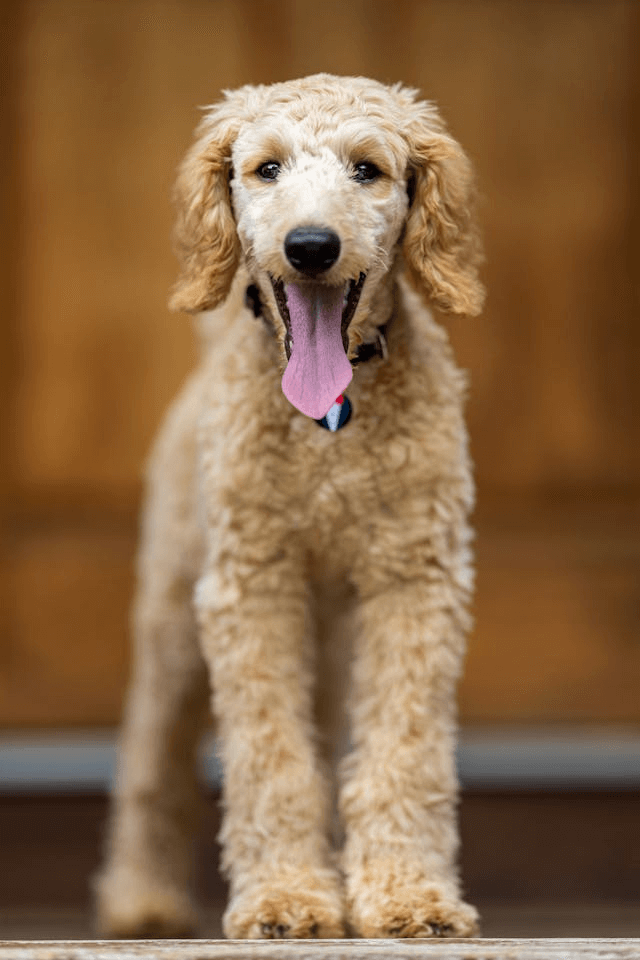
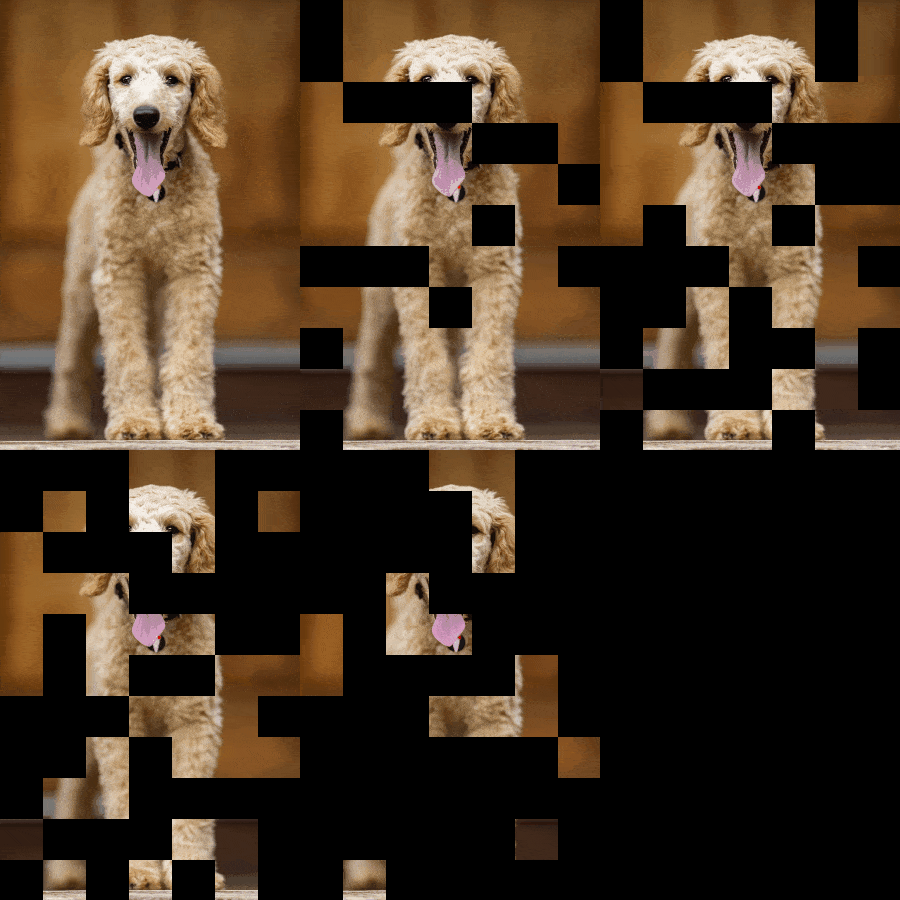
This example shows a cheerful PNG photo of a golden poodle being turned into a disappearing GIF using the mosaic transition effect. We apply a block-based disappearance where the image vanishes piece by piece, creating a fun and dynamic look. The animation runs for 6 seconds, uses 25 frames for a smooth effect, and loops infinitely. Once the image disappears, the screen is left empty with a transparent background. (Source: Pexels.)
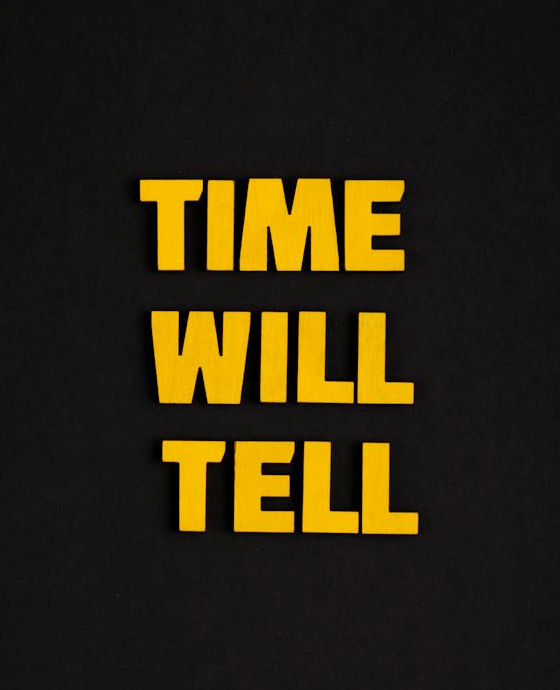
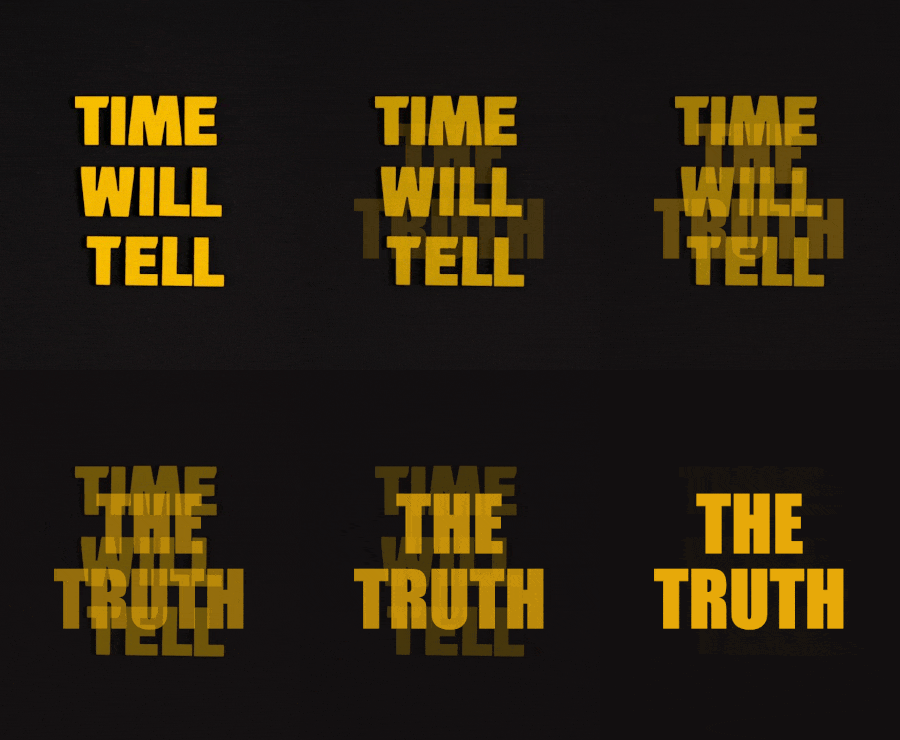
In this example, we transform a static quote PNG into an animated text sequence using a smooth fade-out effect. The original PNG with the phrase "TIME WILL TELL" fades away, revealing the words "THE TRUTH" underneath. We use a dark background, bright yellow text in the Impact font, and generate 40 frames over 5 seconds to make the transition between phrases soft and visually pleasing. (Source: Pexels.)
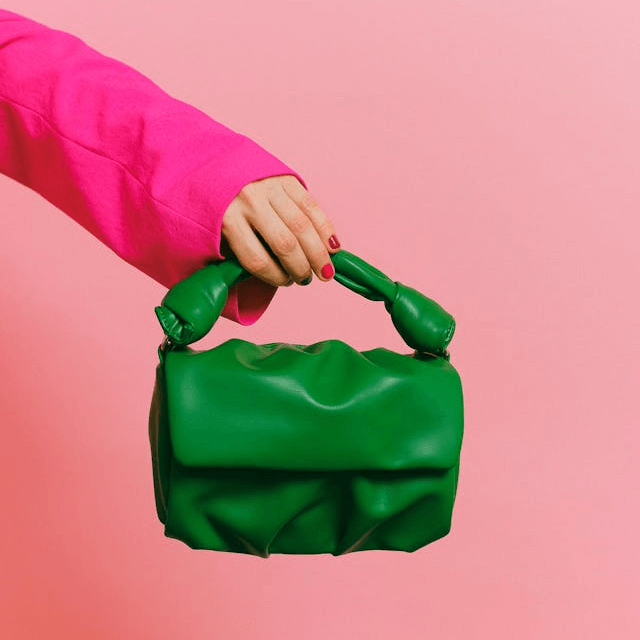
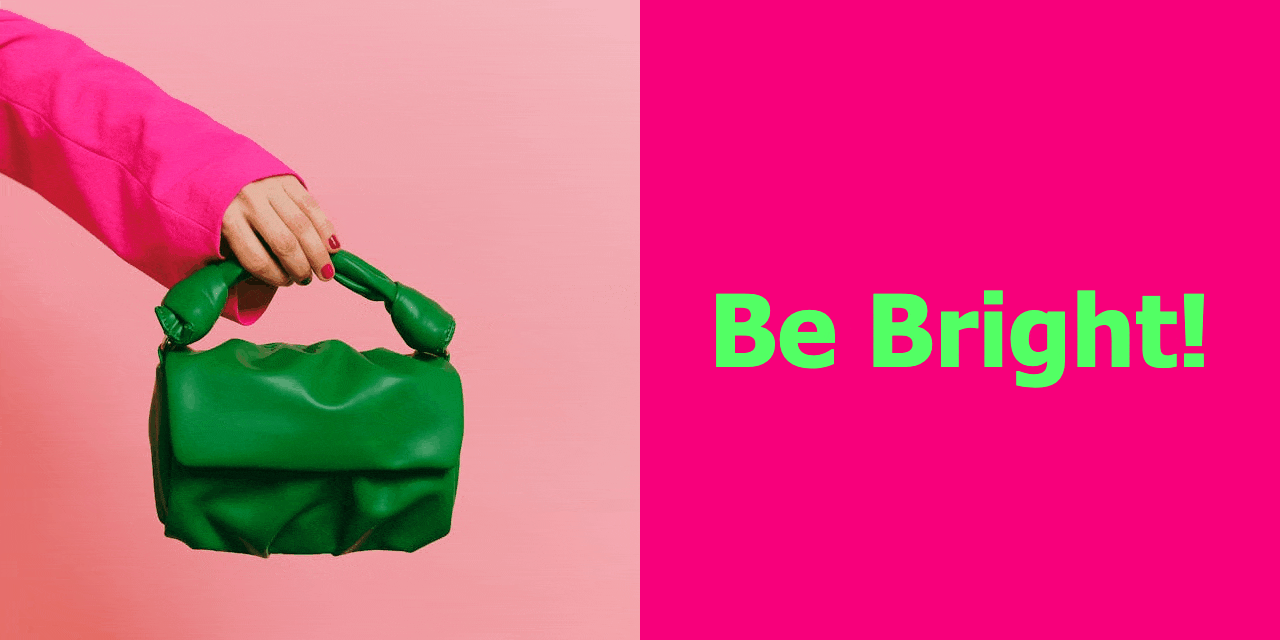
In this example, we design a presentation banner for a fashion collection. A PNG of a green handbag remains visible for five seconds before disappearing with the long-wait mode. After the delay, the phrase "Be Bright!" appears in vivid tones on a pink background. The animation is set to loop infinitely, making it suitable for display screens or in-store presentations. (Source: Pexels.)
In this example, we design an animated opening announcement using the left-to-right wipe effect. The PNG with the opening notice is gradually wiped away, revealing important details such as the opening date and location underneath. We use a transparent background and bold-italic black text. The animation is set to repeat 3 times, after which the screen displaying the location and date remains visible. (Source: Pexels.)


In this example, we generate a reverse countdown animation. We upload a PNG of a winner's trophy and overlay it with the "Countdown Disappear" effect. The countdown is set for 15 seconds, consisting of 12 frames that number down from 10 to 1, after which a final frame with the text "Winner announced!" appears. This type of animation is perfect for a large screen when announcing a contest winner. The animation is designed to play only once since there is only one winner, ensuring the final message stays on screen. (Source: Pexels.)


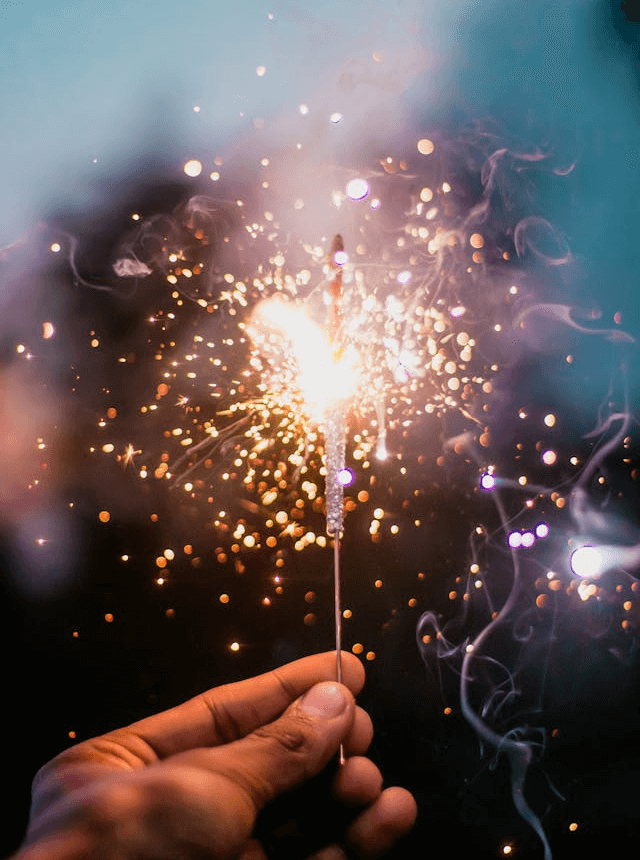
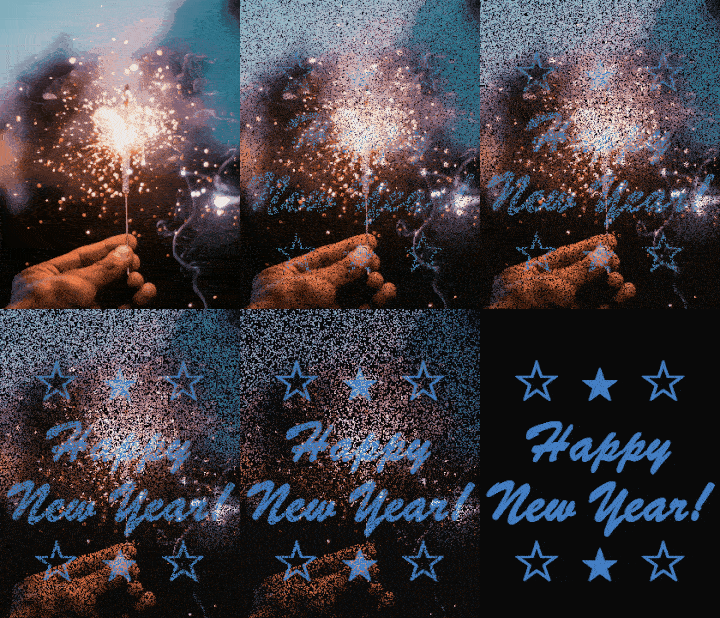
This example shows a festive New Year card created using the "Scatter by Pixels" effect. A PNG image with sparklers gradually breaks apart into pixels, revealing a celebratory "Happy New Year!" message decorated with stars. We use 28 frames over 5 seconds to achieve a smooth transition and combine a dark background with blue decorative text. (Source: Pexels.)
Edit a PNG in your browser.
Compare two or more PNG images.
Convert a PNG image to an AV1 image (AVIF).
Convert an AV1 image (AVIF) to a PNG image.
Convert a PNG image to a High Efficiency Image File (HEIF).
Convert a Hide Efficiency Image File (HEIF) to a PNG image.
Convert a PNG image to an ICO icon.
Convert a PNG image to a TIFF image.
Convert a TIFF image to a PNG image.
Convert a PNG image to a PIK image.
Convert a PIK image to a PNG image.
Convert a PNG image to a PPM image.
Convert a PPM image to a PNG image.
Convert a PNG image to a BPG image.
Convert a BPG image to a PNG image.
Convert a PNG image to a FLIF image.
Convert a FLIF image to a PNG image.
Convert a PNG image to a Paint.net file.
Convert a Paint.net file to a PNG image.
Convert a PNG image to a Photoshop file.
Convert a Photoshop file to a PNG image.
Convert a PNG image to an SVG image.
Convert a PNG image to an PDF document.
Convert a PDF document to a PNG image (or multiple images).
Convert a PNG image to an EPS file.
Convert an EPS file to a PNG image (or multiple images).
Convert a PNG image to a JFIF image.
Convert a JFIF image to a PNG image.
Convert a PNG image to raw RGB values.
Convert RGB values to a PNG image.
Convert a PNG image to raw BGR values.
Convert BGR values to a PNG image.
Convert a PNG image to raw RGBA values.
Convert RGBA values to a PNG image.
Convert a PNG image to raw BGRA values.
Convert BGRA values to a PNG image.
Convert multiple PNGs to a GIF animation.
Convert an APNG animation to a GIF image.
Convert a GIF animation to an APNG image.
Convert an APNG image to a Webp image.
Convert a Webp image to an APNG image.
Convert an APNG image to an MP4 video.
Convert an MP4 video to an APNG image.
Convert an APNG image to an AVI video.
Convert an AVI video to an APNG image.
Convert an APNG image to a WMV video.
Convert an WMV video to an APNG image.
Extract all frames from an APNG image.
Play a PNG animation (APNG) frame by frame.
Change the playback speed of an animated PNG (APNG).
Change how many times an animated PNG loops.
Reverse the order of frames in an animated PNG (APNG).
Created animated PNGs (APNGs) from input images.
Check if the given PNG file is an animated PNG file (APNG).
Create a sprite sheet from all animated PNG (APNG) frames.
Create an animated PNG (APNG) from a sprite sheet.
Create Excel art from a PNG image.
Break a PNG image into multiple pieces.
Generate a slideshow animation from multiple PNGs.
Generate a mosaic wall from multiple PNGs.
Convert a PNG into a hexagonal grid of pixels.
Convert a PNG into a triangular grid of pixels.
Create a Voronoi diagram from a PNG image.
Darken PNG corners compared to its center.
Create multiple reflections of a PNG.
Apply a Bayer filter on a PNG.
Make a PNG look like it was taken via night vision goggles.
Make a PNG look like it's spherical.
Run a PNG through the Mobius Transform.
Convert between RGB, CMYK, HSV, and HSL color spaces.
Remove dithering from a PNG image.
Convert a PNG to an ASCII art image.
Convert a PNG to an ANSI art image.
Convert ANSI art to a PNG image.
Convert a PNG to a Braille art image.
Convert Braille art to a PNG image.
Increase the quality of a PNG image.
Extract a 2d slice from a PNG.
Create a PNG that contains all possible RGB colors.
Find all textual information in a PNG image and extract it.
Given any 2D PNG, add 3rd dimension to it.
Quickly erase text (labels, captions) from a PNG.
Quickly delete a watermark from a PNG.
Salvage a PNG that has bad bytes in it and doesn't open.
Conceal a secret message in a PNG image.
Update meta data of a PNG file.
Delete meta data from a PNG picture.
Check if the given file is a valid PNG without errors.
Subscribe to our updates. We'll let you know when we release new tools and features, and when we organize online workshops.
Enter your email here
We're Browserling — a friendly and fun cross-browser testing company powered by alien technology. At Browserling we love to make people's lives easier, so we created this collection of online PNG tools. We created the simplest possible user interface for our tools and they are now used by millions of users every month. Behind the scenes, our online PNG tools are actually powered by our web developer tools that we created over the last couple of years. Check them out!