World's simplest online Portable Network Graphics (PNG) quality reducer. Just import your PNG image in the editor on the left, and you'll instantly get a low‑quality PNG with visual artifacts on the right. In the options, you can simulate JPG or WebP compression artifacts, add visual distortions such as pixelation, blur, and noise, recreate retro display effects with scanlines, introduce chromatic aberration and color channel shifts, and apply vintage tones or vignette shading. Free, quick, and very powerful. Created with love by team Browserling.
World's simplest online Portable Network Graphics (PNG) quality reducer. Just import your PNG image in the editor on the left, and you'll instantly get a low‑quality PNG with visual artifacts on the right. In the options, you can simulate JPG or WebP compression artifacts, add visual distortions such as pixelation, blur, and noise, recreate retro display effects with scanlines, introduce chromatic aberration and color channel shifts, and apply vintage tones or vignette shading. Free, quick, and very powerful. Created with love by team Browserling.

This browser-based utility reduces the visual quality of a PNG image. It can simulate low-resolution graphics, vintage aesthetics, or help test how images behave under compression. For example, you can create a retro game look by combining pixelation and scanlines, or mimic old film photography by applying vintage tones, vignette, and noise. The tool allows you to apply multiple types of visual distortion, which can be configured in the options. The quality options add compression artifacts. JPG Quality simulates blocky distortions typical of heavily compressed JPEG images, while WebP Quality introduces WebP-style compression artifacts such as soft blurring and slight color distortion. The Pixelation option enlarges individual pixels to recreate the appearance of low-resolution images. Blur reduces sharp details and can imitate poor camera focus or aggressive scaling. Noise adds random color variation similar to digital sensor noise or compression grain. The Red, Green, and Blue options adjust individual color channels. This can create color imbalance, often seen in corrupted images or poorly calibrated cameras. For example, slightly increasing the blue channel can give the image a colder tone, while increasing red may simulate sensor overheating. The Chromatic option creates chromatic aberration, where the red, green, and blue channels shift slightly apart, producing colored fringes around edges. The Scanlines option adds horizontal lines similar to those seen on vintage CRT monitors or VHS recordings. The Vignette effect darkens the edges of the image while keeping the center brighter. You can control both the vignette strength (how dark the edges become) and size (how far the effect extends toward the center). The Vintage option applies a classic sepia tone reminiscent of aged photographs or retro film processing. When combined with noise, slight blur, and vignette, it can recreate the appearance of photos taken decades ago or images scanned from old prints. Png-abulous!
This browser-based utility reduces the visual quality of a PNG image. It can simulate low-resolution graphics, vintage aesthetics, or help test how images behave under compression. For example, you can create a retro game look by combining pixelation and scanlines, or mimic old film photography by applying vintage tones, vignette, and noise. The tool allows you to apply multiple types of visual distortion, which can be configured in the options. The quality options add compression artifacts. JPG Quality simulates blocky distortions typical of heavily compressed JPEG images, while WebP Quality introduces WebP-style compression artifacts such as soft blurring and slight color distortion. The Pixelation option enlarges individual pixels to recreate the appearance of low-resolution images. Blur reduces sharp details and can imitate poor camera focus or aggressive scaling. Noise adds random color variation similar to digital sensor noise or compression grain. The Red, Green, and Blue options adjust individual color channels. This can create color imbalance, often seen in corrupted images or poorly calibrated cameras. For example, slightly increasing the blue channel can give the image a colder tone, while increasing red may simulate sensor overheating. The Chromatic option creates chromatic aberration, where the red, green, and blue channels shift slightly apart, producing colored fringes around edges. The Scanlines option adds horizontal lines similar to those seen on vintage CRT monitors or VHS recordings. The Vignette effect darkens the edges of the image while keeping the center brighter. You can control both the vignette strength (how dark the edges become) and size (how far the effect extends toward the center). The Vintage option applies a classic sepia tone reminiscent of aged photographs or retro film processing. When combined with noise, slight blur, and vignette, it can recreate the appearance of photos taken decades ago or images scanned from old prints. Png-abulous!
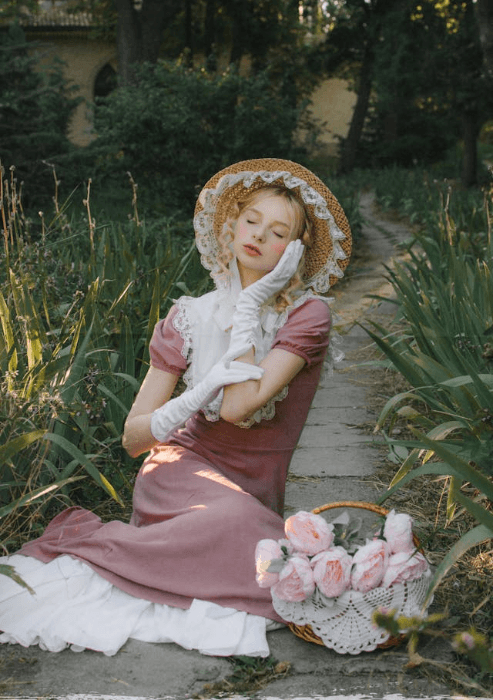
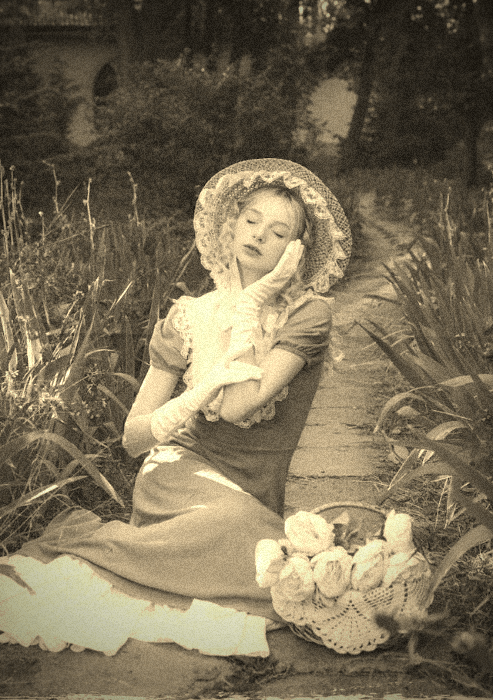
In this example, we intentionally degrade the quality of a PNG image to achieve a nostalgic, aged look. By uploading a modern photo of a woman in vintage clothing and increasing the brightness to 105%, we soften the details. We then add a subtle layer of noise (intensity 12), a 50% strength vignette for a classic framed feel, and activate the vintage sepia filter. The result is a photograph that appears to have been captured many decades ago. (Source: Pexels.)
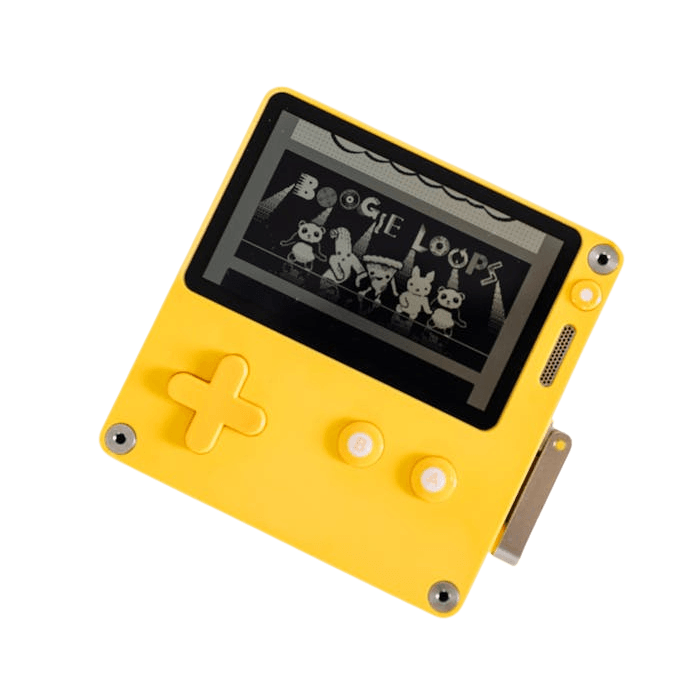
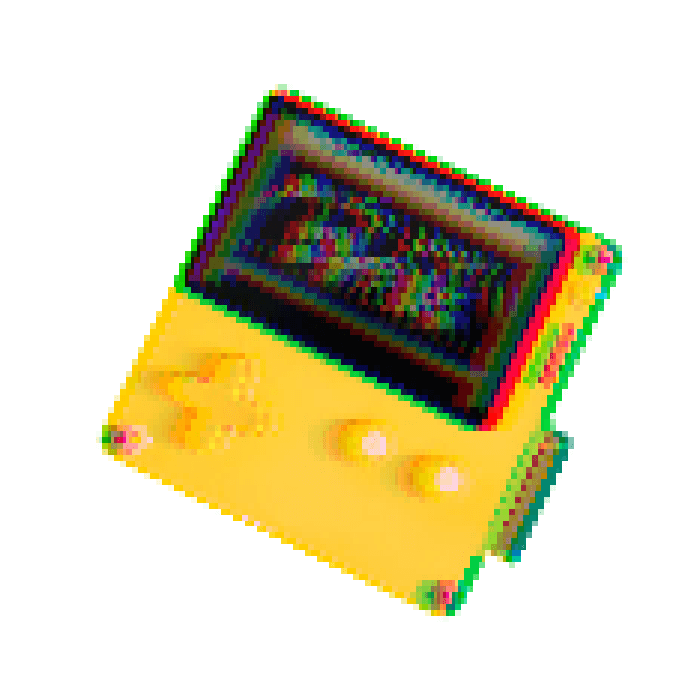
This example converts a modern PNG object into the golden age of 8-bit gaming and early home computers. To recreate the atmosphere of the Tetris and SEGA era, we apply a pixelation factor of 6 to simplify the shapes. Additionally, we use a chromatic aberration setting of 15 to simulate the color-bleeding effect common on old CRT television monitors, giving the yellow console a distinct retro-tech vibe. (Source: Pexels.)
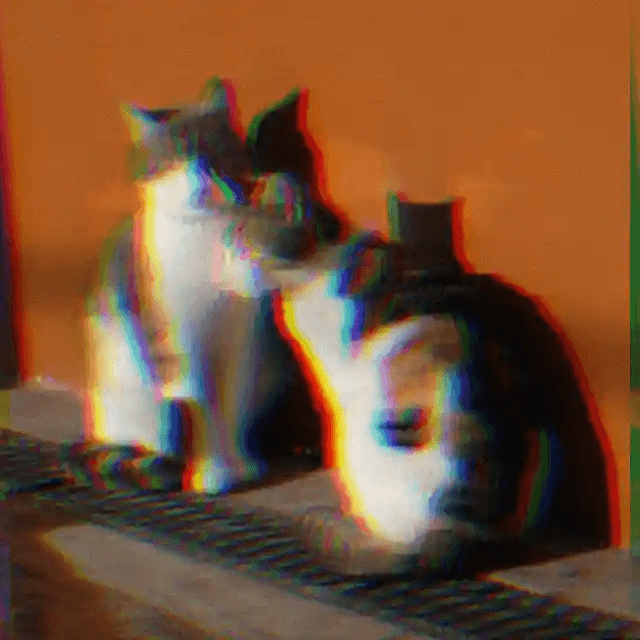
In this example, we produce a low-quality PNG with a dreamy, atmospheric feel reminiscent of early 2000s mobile phone cameras. We apply WebP compression at 20% to introduce subtle artifacts and reduce clarity. Next, we add a 2-pixel light blur to soften edges and remove fine detail. We also add moderate noise (10) to mimic digital sensor grain, along with a chromatic aberration effect (10) that slightly shifts the color channels near edges. Together, these effects transform the crisp image into a warm, atmospheric snapshot. (Source: Pexels.)
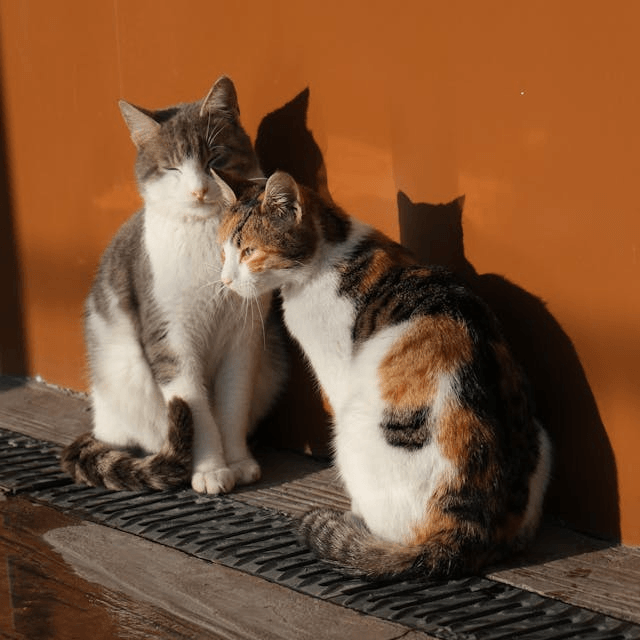
In this example, we apply heavy color correction and display-style artifacts to a traditional Asian garden PNG. We increase the red channel by 100 and the green channel by 70 to give the environment a warm, yellowish tint. Additionally, we set the scanline intensity to 40, which mimics the horizontal lines seen on analog TV screens or surveillance monitors, adding a unique industrial texture to the PNG image. (Source: Pexels.)
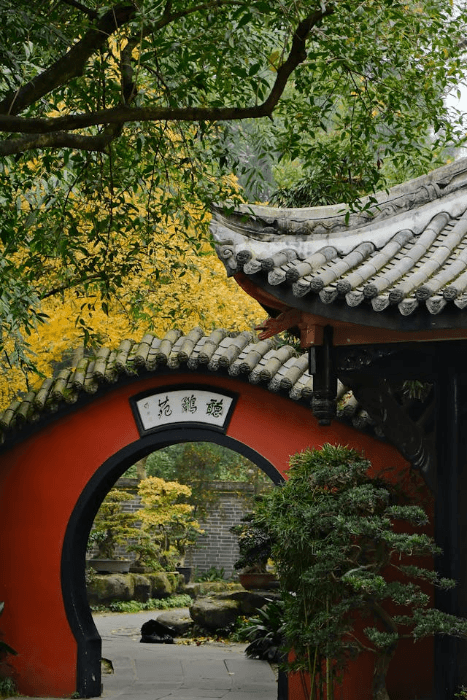
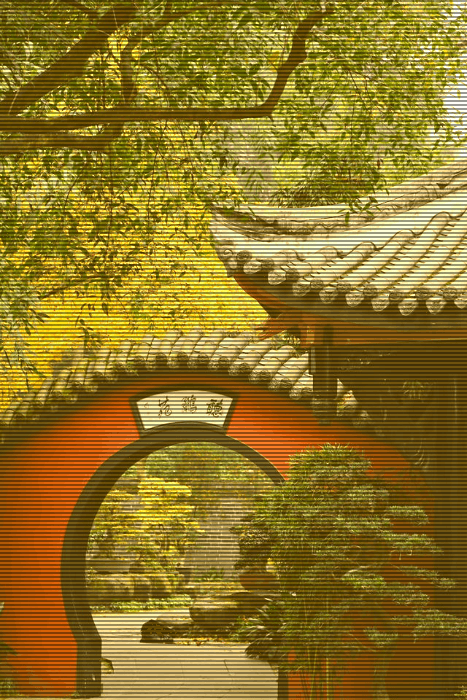
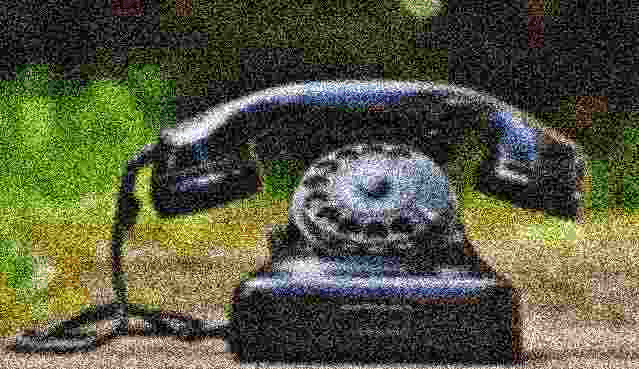
In this example, we perform extreme quality degradation on a PNG image. We simulate heavy compression by lowering the JPG quality to just 8%, which produces visible blocky artifacts. On top of that, we apply a very strong noise effect with an intensity of 70, filling the frame with random grain. Combined with a 4-pixel blur, this creates a grit-heavy, distorted aesthetic. (Source: Pexels.)

Edit a PNG in your browser.
Compare two or more PNG images.
Convert a PNG image to an AV1 image (AVIF).
Convert an AV1 image (AVIF) to a PNG image.
Convert a PNG image to a High Efficiency Image File (HEIF).
Convert a Hide Efficiency Image File (HEIF) to a PNG image.
Convert a PNG image to an ICO icon.
Convert a PNG image to a TIFF image.
Convert a TIFF image to a PNG image.
Convert a PNG image to a PIK image.
Convert a PIK image to a PNG image.
Convert a PNG image to a PPM image.
Convert a PPM image to a PNG image.
Convert a PNG image to a BPG image.
Convert a BPG image to a PNG image.
Convert a PNG image to a FLIF image.
Convert a FLIF image to a PNG image.
Convert a PNG image to a Paint.net file.
Convert a Paint.net file to a PNG image.
Convert a PNG image to a Photoshop file.
Convert a Photoshop file to a PNG image.
Convert a PNG image to an SVG image.
Convert a PNG image to an PDF document.
Convert a PDF document to a PNG image (or multiple images).
Convert a PNG image to an EPS file.
Convert an EPS file to a PNG image (or multiple images).
Convert a PNG image to a JFIF image.
Convert a JFIF image to a PNG image.
Convert a PNG image to raw RGB values.
Convert RGB values to a PNG image.
Convert a PNG image to raw BGR values.
Convert BGR values to a PNG image.
Convert a PNG image to raw RGBA values.
Convert RGBA values to a PNG image.
Convert a PNG image to raw BGRA values.
Convert BGRA values to a PNG image.
Convert multiple PNGs to a GIF animation.
Convert an APNG animation to a GIF image.
Convert a GIF animation to an APNG image.
Convert an APNG image to a Webp image.
Convert a Webp image to an APNG image.
Convert an APNG image to an MP4 video.
Convert an MP4 video to an APNG image.
Convert an APNG image to an AVI video.
Convert an AVI video to an APNG image.
Convert an APNG image to a WMV video.
Convert an WMV video to an APNG image.
Extract all frames from an APNG image.
Play a PNG animation (APNG) frame by frame.
Change the playback speed of an animated PNG (APNG).
Change how many times an animated PNG loops.
Reverse the order of frames in an animated PNG (APNG).
Created animated PNGs (APNGs) from input images.
Check if the given PNG file is an animated PNG file (APNG).
Create a sprite sheet from all animated PNG (APNG) frames.
Create an animated PNG (APNG) from a sprite sheet.
Create Excel art from a PNG image.
Break a PNG image into multiple pieces.
Generate a slideshow animation from multiple PNGs.
Generate a mosaic wall from multiple PNGs.
Convert a PNG into a hexagonal grid of pixels.
Convert a PNG into a triangular grid of pixels.
Create a Voronoi diagram from a PNG image.
Darken PNG corners compared to its center.
Create multiple reflections of a PNG.
Apply a Bayer filter on a PNG.
Make a PNG look like it was taken via night vision goggles.
Make a PNG look like it's spherical.
Run a PNG through the Mobius Transform.
Convert between RGB, CMYK, HSV, and HSL color spaces.
Remove dithering from a PNG image.
Convert a PNG to an ASCII art image.
Convert a PNG to an ANSI art image.
Convert ANSI art to a PNG image.
Convert a PNG to a Braille art image.
Convert Braille art to a PNG image.
Increase the quality of a PNG image.
Extract a 2d slice from a PNG.
Create a PNG that contains all possible RGB colors.
Find all textual information in a PNG image and extract it.
Given any 2D PNG, add 3rd dimension to it.
Quickly erase text (labels, captions) from a PNG.
Quickly delete a watermark from a PNG.
Salvage a PNG that has bad bytes in it and doesn't open.
Conceal a secret message in a PNG image.
Update meta data of a PNG file.
Delete meta data from a PNG picture.
Check if the given file is a valid PNG without errors.
Subscribe to our updates. We'll let you know when we release new tools and features, and when we organize online workshops.
Enter your email here
We're Browserling — a friendly and fun cross-browser testing company powered by alien technology. At Browserling we love to make people's lives easier, so we created this collection of online PNG tools. We created the simplest possible user interface for our tools and they are now used by millions of users every month. Behind the scenes, our online PNG tools are actually powered by our web developer tools that we created over the last couple of years. Check them out!