World's simplest online Portable Network Graphics (PNG) channel order swapper. Just import your PNG into the input area, and you'll instantly get a PNG with its four channels placed in a new order. In the tool options, you can specify how the source pixel channels are arranged and choose how the red, green, blue, and alpha channels should be ordered in the resulting PNG. Free, quick, and very powerful. Created with love by team Browserling.
World's simplest online Portable Network Graphics (PNG) channel order swapper. Just import your PNG into the input area, and you'll instantly get a PNG with its four channels placed in a new order. In the tool options, you can specify how the source pixel channels are arranged and choose how the red, green, blue, and alpha channels should be ordered in the resulting PNG. Free, quick, and very powerful. Created with love by team Browserling.
This tool swaps the color channels in a PNG image. Each pixel in a PNG is made from red, green, blue, and alpha values, commonly written as RGBA. The first three channels control the amount of red, green, and blue in the pixel, while the alpha channel controls its opacity. By changing their order, you can make one channel take the place of another without recalculating, blending, or otherwise modifying the stored values. For example, changing RGBA to GRBA exchanges red and green, turning red areas green and green areas red while leaving blue tones and transparency unchanged. Grayscale pixels also remain unchanged when only the RGB channels are rearranged because their red, green, and blue values are equal. If alpha is moved into one of the color positions, its opacity values are reinterpreted as red, green, or blue, while the color channel moved into the alpha position starts controlling transparency. This can create unusual color and transparency effects, including partial transparency and sharply cut-out regions. The tool supports all 24 possible arrangements of the four channels. Six arrangements keep alpha in the fourth position – RGBA, RBGA, GRBA, GBRA, BRGA, and BGRA. The other 18 arrangements, such as ARGB, RGAB, GABR, and ABGR, move alpha to a different position and can therefore change both color and transparency. A fully transparent pixel is usually represented as RGBA(0, 0, 0, 0), so it remains unchanged in every channel order because all four values are zero. You can also specify the current input order. This is useful when a PNG was created from a BGRA, ARGB, or another raw pixel layout, or when an earlier operation has already rearranged them. Png-abulous!
This tool swaps the color channels in a PNG image. Each pixel in a PNG is made from red, green, blue, and alpha values, commonly written as RGBA. The first three channels control the amount of red, green, and blue in the pixel, while the alpha channel controls its opacity. By changing their order, you can make one channel take the place of another without recalculating, blending, or otherwise modifying the stored values. For example, changing RGBA to GRBA exchanges red and green, turning red areas green and green areas red while leaving blue tones and transparency unchanged. Grayscale pixels also remain unchanged when only the RGB channels are rearranged because their red, green, and blue values are equal. If alpha is moved into one of the color positions, its opacity values are reinterpreted as red, green, or blue, while the color channel moved into the alpha position starts controlling transparency. This can create unusual color and transparency effects, including partial transparency and sharply cut-out regions. The tool supports all 24 possible arrangements of the four channels. Six arrangements keep alpha in the fourth position – RGBA, RBGA, GRBA, GBRA, BRGA, and BGRA. The other 18 arrangements, such as ARGB, RGAB, GABR, and ABGR, move alpha to a different position and can therefore change both color and transparency. A fully transparent pixel is usually represented as RGBA(0, 0, 0, 0), so it remains unchanged in every channel order because all four values are zero. You can also specify the current input order. This is useful when a PNG was created from a BGRA, ARGB, or another raw pixel layout, or when an earlier operation has already rearranged them. Png-abulous!
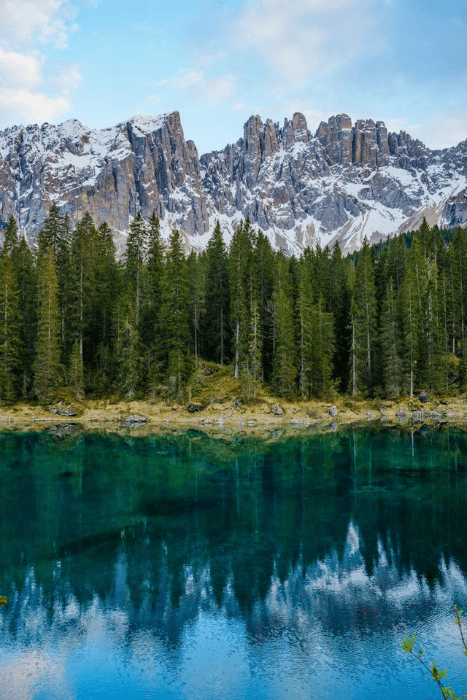
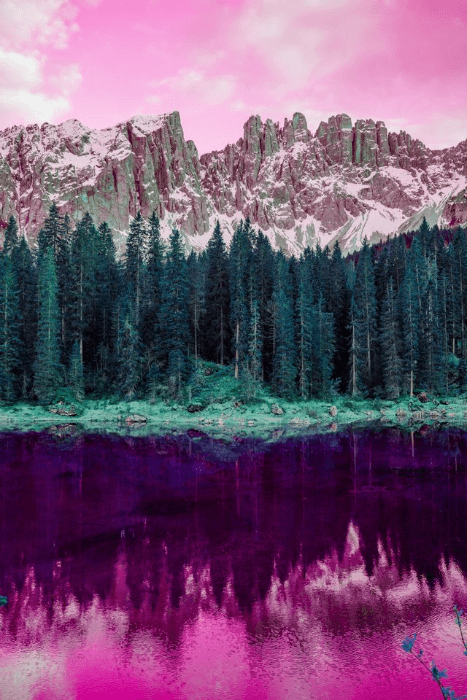
In this example, we change an alpine lake photo from RGBA to BRGA channel order. The original blue values move into the red position, red moves into green, and green moves into blue, while alpha stays in place. As a result, the blue sky and its reflection turn vivid pink, the evergreen forest takes on deep teal shades, and the warm mountain rock gains a green tint. (Source: Pexels.)
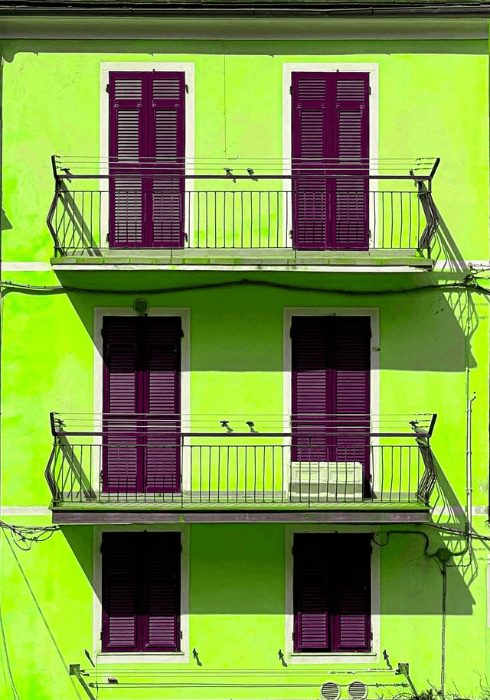
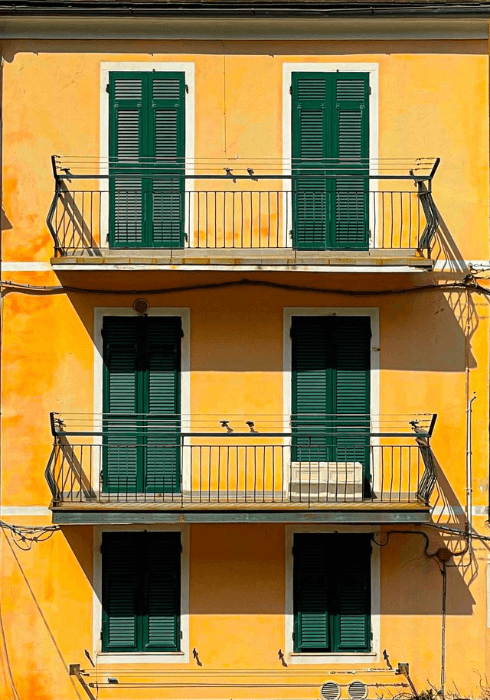
In this example, the red and green values in a photo of a Venetian facade are arranged in GRBA order. We identify this input layout and convert it to standard RGBA, exchanging the first two channels while leaving blue and alpha untouched. This correction changes the neon-green walls back to sunlit orange and restores the purple shutters to their natural dark-green color. (Source: Pexels.)
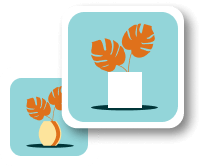
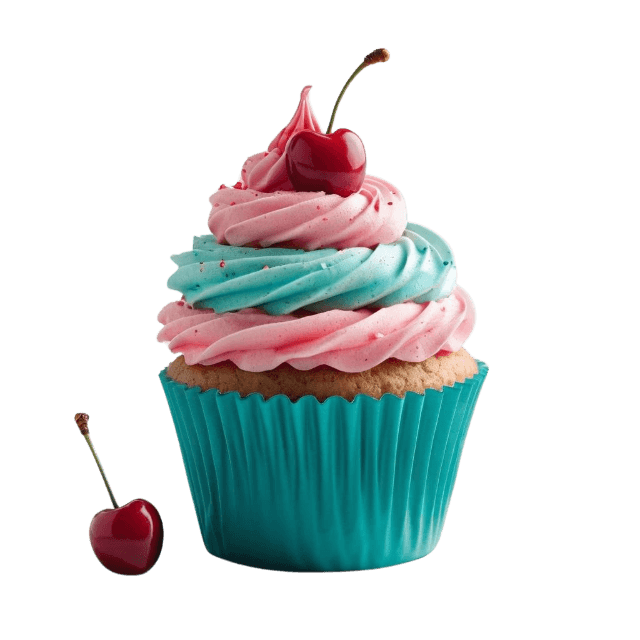
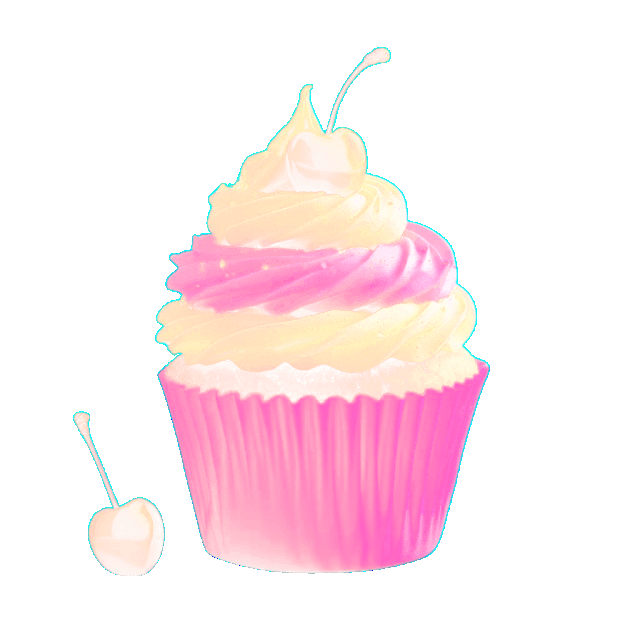
In this example, we reorder a transparent cupcake PNG from RGBA to ARGB. The original alpha values move into red, red shifts into green, green shifts into blue, and blue becomes the new alpha channel. This creates a cupcake with shifted, semi-transparent colors because the blue channel now controls each pixel's opacity. (Source: Vecteezy.com.)
Edit a PNG in your browser.
Compare two or more PNG images.
Convert a PNG image to an AV1 image (AVIF).
Convert an AV1 image (AVIF) to a PNG image.
Convert a PNG image to a High Efficiency Image File (HEIF).
Convert a Hide Efficiency Image File (HEIF) to a PNG image.
Convert a PNG image to an ICO icon.
Convert a PNG image to a TIFF image.
Convert a TIFF image to a PNG image.
Convert a PNG image to a PIK image.
Convert a PIK image to a PNG image.
Convert a PNG image to a PPM image.
Convert a PPM image to a PNG image.
Convert a PNG image to a BPG image.
Convert a BPG image to a PNG image.
Convert a PNG image to a FLIF image.
Convert a FLIF image to a PNG image.
Convert a PNG image to a Paint.net file.
Convert a Paint.net file to a PNG image.
Convert a PNG image to a Photoshop file.
Convert a Photoshop file to a PNG image.
Convert a PNG image to an SVG image.
Convert a PNG image to an PDF document.
Convert a PDF document to a PNG image (or multiple images).
Convert a PNG image to an EPS file.
Convert an EPS file to a PNG image (or multiple images).
Convert a PNG image to a JFIF image.
Convert a JFIF image to a PNG image.
Convert a PNG image to raw RGB values.
Convert RGB values to a PNG image.
Convert a PNG image to raw BGR values.
Convert BGR values to a PNG image.
Convert a PNG image to raw RGBA values.
Convert RGBA values to a PNG image.
Convert a PNG image to raw BGRA values.
Convert BGRA values to a PNG image.
Convert multiple PNGs to a GIF animation.
Convert an APNG animation to a GIF image.
Convert a GIF animation to an APNG image.
Convert an APNG image to a Webp image.
Convert a Webp image to an APNG image.
Convert an APNG image to an MP4 video.
Convert an MP4 video to an APNG image.
Convert an APNG image to an AVI video.
Convert an AVI video to an APNG image.
Convert an APNG image to a WMV video.
Convert an WMV video to an APNG image.
Extract all frames from an APNG image.
Play a PNG animation (APNG) frame by frame.
Change the playback speed of an animated PNG (APNG).
Change how many times an animated PNG loops.
Reverse the order of frames in an animated PNG (APNG).
Created animated PNGs (APNGs) from input images.
Check if the given PNG file is an animated PNG file (APNG).
Create a sprite sheet from all animated PNG (APNG) frames.
Create an animated PNG (APNG) from a sprite sheet.
Create Excel art from a PNG image.
Break a PNG image into multiple pieces.
Generate a slideshow animation from multiple PNGs.
Generate a mosaic wall from multiple PNGs.
Convert a PNG into a hexagonal grid of pixels.
Convert a PNG into a triangular grid of pixels.
Create a Voronoi diagram from a PNG image.
Darken PNG corners compared to its center.
Create multiple reflections of a PNG.
Apply a Bayer filter on a PNG.
Make a PNG look like it was taken via night vision goggles.
Make a PNG look like it's spherical.
Run a PNG through the Mobius Transform.
Convert between RGB, CMYK, HSV, and HSL color spaces.
Convert between 8-bit, 16-bit, 24-bit, and 32-bit PNG depths.
Remove dithering from a PNG image.
Convert a PNG to an ASCII art image.
Convert ASCII art to a PNG image.
Convert a PNG to an ANSI art image.
Convert ANSI art to a PNG image.
Convert a PNG to a Braille art image.
Convert Braille art to a PNG image.
Increase the quality of a PNG image.
Extract a 2d slice from a PNG.
Create a PNG that contains all possible RGB colors.
Find all textual information in a PNG image and extract it.
Given any 2D PNG, add 3rd dimension to it.
Quickly erase text (labels, captions) from a PNG.
Quickly delete a watermark from a PNG.
Salvage a PNG that has bad bytes in it and doesn't open.
Conceal a secret message in a PNG image.
Update meta data of a PNG file.
Delete meta data from a PNG picture.
Check if the given file is a valid PNG without errors.
Subscribe to our updates. We'll let you know when we release new tools and features, and when we organize online workshops.
Enter your email here
We're Browserling — a friendly and fun cross-browser testing company powered by alien technology. At Browserling we love to make people's lives easier, so we created this collection of online PNG tools. We created the simplest possible user interface for our tools and they are now used by millions of users every month. Behind the scenes, our online PNG tools are actually powered by our web developer tools that we created over the last couple of years. Check them out!