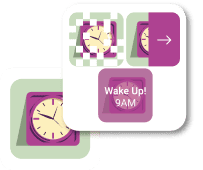
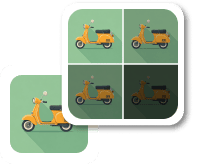
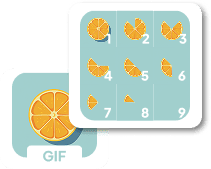
World's simplest online PNG fade-out animation maker. Just import your PNG image into the input area, and this utility will create an animation where the PNG gradually fades out into the color you choose. You can set how long the fade lasts, decide whether it disappears evenly or in a specific direction, and even hold the PNG on screen before the fade begins. Free, quick, and very powerful. Created with love by team Browserling.
World's simplest online PNG fade-out animation maker. Just import your PNG image into the input area, and this utility will create an animation where the PNG gradually fades out into the color you choose. You can set how long the fade lasts, decide whether it disappears evenly or in a specific direction, and even hold the PNG on screen before the fade begins. Free, quick, and very powerful. Created with love by team Browserling.

This browser-based tool transforms a PNG file into a GIF animation with a fade-out effect. The animation begins with the PNG fully visible, optionally keeps it on screen for a short hold time, and then fades it out until the image is fully replaced by a solid color. This creates a smooth ending for a still PNG and helps the last frame blend more naturally into surrounding content. To use the tool, import a PNG and choose the background color the animation should fade into. The color field supports English color names, hex, and RGB codes. You can also control the direction of the fade-out. It can fade as one complete image, or it can be wiped away gradually from the left, right, top, or bottom side. The animation can start immediately with the fade-out, or it can pause first on the original PNG. For example, you can set hold time to 0 if the fade-out should begin right away, or use values such as 1, 2, or 3.5 seconds to keep the PNG fully visible at the start. Fade-out duration can also be a whole or fractional number, such as 1.5, 2, or 4.25 seconds. The finished animation is saved as a GIF. In this format, fade-out frames cannot use real semi-transparent pixels, so the visible parts of the PNG are flattened onto the selected background color as they fade away. The "Preserve Transparency" option controls what happens to the empty parts of the original PNG. If it is enabled, fully transparent areas remain transparent in the output GIF. If it is disabled, the background color fills the whole canvas. The stats panel in the options shows the number of generated frames, the frame currently displayed in the preview, the frame delay, the full animation length, and the output dimensions. If you want to create the opposite fade effect, use our Fade In a PNG tool. Png-abulous!
This browser-based tool transforms a PNG file into a GIF animation with a fade-out effect. The animation begins with the PNG fully visible, optionally keeps it on screen for a short hold time, and then fades it out until the image is fully replaced by a solid color. This creates a smooth ending for a still PNG and helps the last frame blend more naturally into surrounding content. To use the tool, import a PNG and choose the background color the animation should fade into. The color field supports English color names, hex, and RGB codes. You can also control the direction of the fade-out. It can fade as one complete image, or it can be wiped away gradually from the left, right, top, or bottom side. The animation can start immediately with the fade-out, or it can pause first on the original PNG. For example, you can set hold time to 0 if the fade-out should begin right away, or use values such as 1, 2, or 3.5 seconds to keep the PNG fully visible at the start. Fade-out duration can also be a whole or fractional number, such as 1.5, 2, or 4.25 seconds. The finished animation is saved as a GIF. In this format, fade-out frames cannot use real semi-transparent pixels, so the visible parts of the PNG are flattened onto the selected background color as they fade away. The "Preserve Transparency" option controls what happens to the empty parts of the original PNG. If it is enabled, fully transparent areas remain transparent in the output GIF. If it is disabled, the background color fills the whole canvas. The stats panel in the options shows the number of generated frames, the frame currently displayed in the preview, the frame delay, the full animation length, and the output dimensions. If you want to create the opposite fade effect, use our Fade In a PNG tool. Png-abulous!
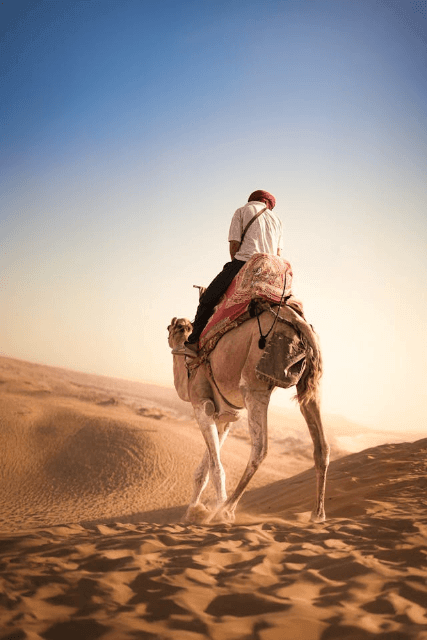
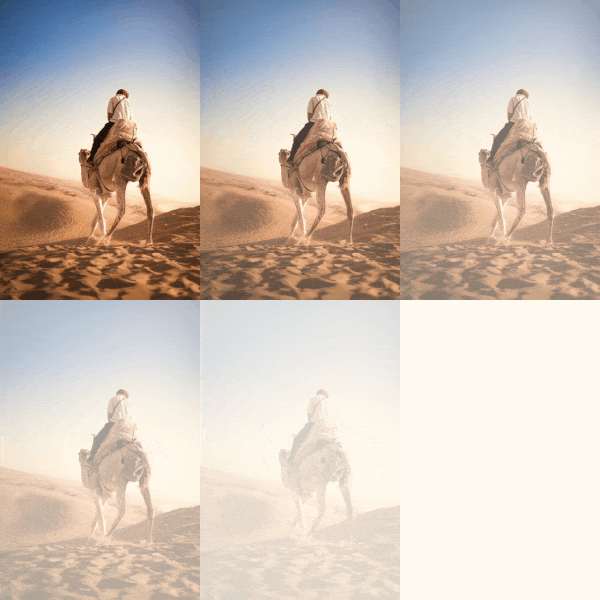
In this example, we turn a PNG of a man riding a camel in the desert into a bright fade-out animation. We use a full-image fade, so the whole PNG slowly loses visibility at the same time and moves into a floral white background. This creates a sun-washed look, as if the strong desert light covers the entire scene. We set the fade-out time to 1.5 seconds and add a 0.5-second hold time before the fade starts. (Source: Pexels.)
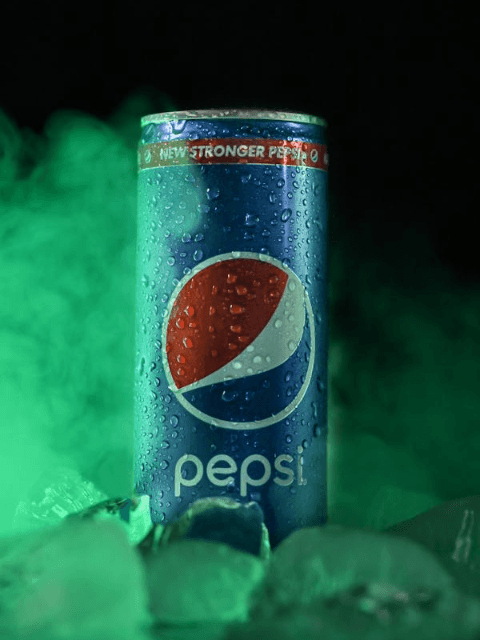
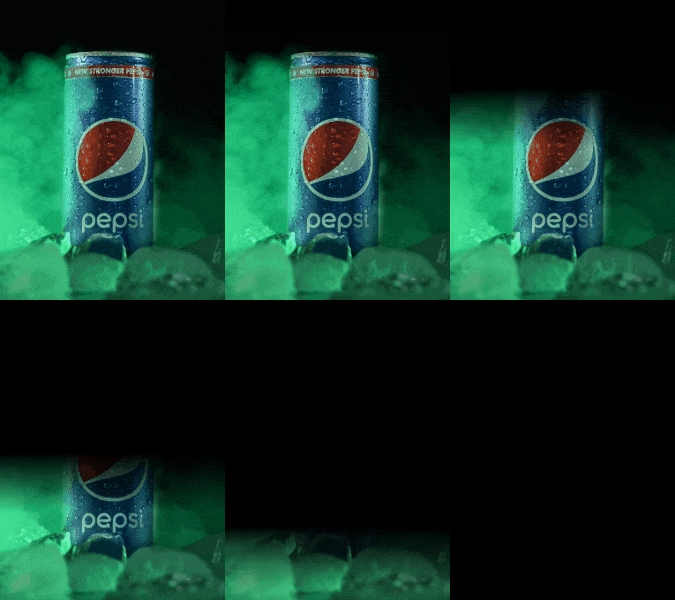
In this example, we prepare a PNG of a Pepsi can for a billboard-style animation. We keep the product image fully visible for 3 seconds, then we use a 2-second top-to-bottom fade-out into black. This creates a strong transition between different ad visuals. (Source: Pexels.)
In this example, we fade out a PNG of an open book with dried flowers. We use a right-to-left fade, so the image clears across the frame and gives the animation a gentle page-turn feel. We choose a light paper-tone background, set the fade-out time to 1.2 seconds, and use no extra hold time. (Source: Pexels.)


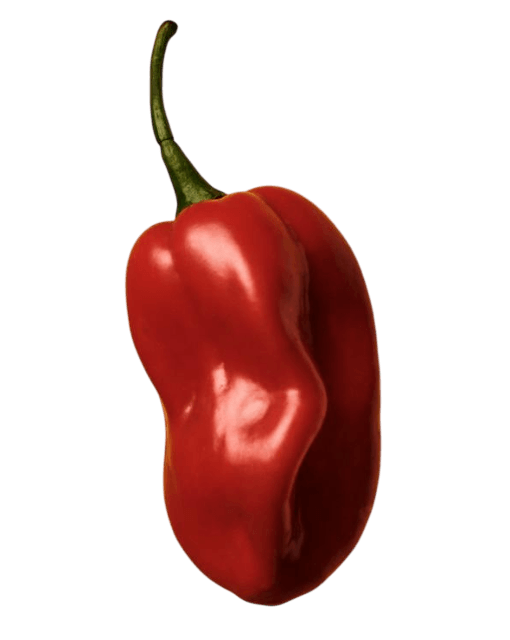
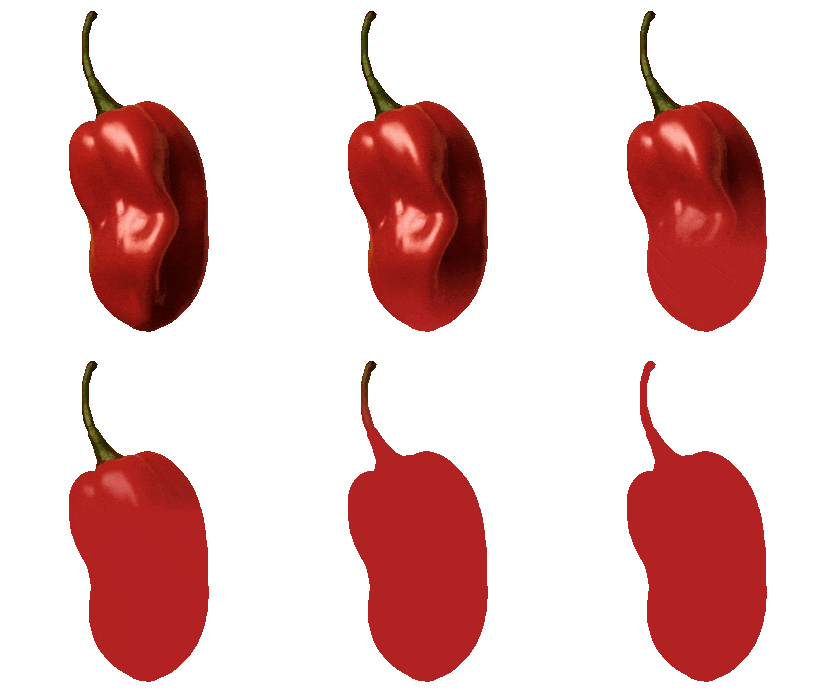
In this example, we animate a red habanero pepper on a transparent background. We keep the PNG visible for 1 second, then fade it out from bottom to top over 2.2 seconds. Because transparency is preserved, the fade affects only the pepper itself, while the outer background stays transparent in the output GIF. (Source: Pexels.)
Edit a PNG in your browser.
Compare two or more PNG images.
Convert a PNG image to an AV1 image (AVIF).
Convert an AV1 image (AVIF) to a PNG image.
Convert a PNG image to a High Efficiency Image File (HEIF).
Convert a Hide Efficiency Image File (HEIF) to a PNG image.
Convert a PNG image to an ICO icon.
Convert a PNG image to a TIFF image.
Convert a TIFF image to a PNG image.
Convert a PNG image to a PIK image.
Convert a PIK image to a PNG image.
Convert a PNG image to a PPM image.
Convert a PPM image to a PNG image.
Convert a PNG image to a BPG image.
Convert a BPG image to a PNG image.
Convert a PNG image to a FLIF image.
Convert a FLIF image to a PNG image.
Convert a PNG image to a Paint.net file.
Convert a Paint.net file to a PNG image.
Convert a PNG image to a Photoshop file.
Convert a Photoshop file to a PNG image.
Convert a PNG image to an SVG image.
Convert a PNG image to an PDF document.
Convert a PDF document to a PNG image (or multiple images).
Convert a PNG image to an EPS file.
Convert an EPS file to a PNG image (or multiple images).
Convert a PNG image to a JFIF image.
Convert a JFIF image to a PNG image.
Convert a PNG image to raw RGB values.
Convert RGB values to a PNG image.
Convert a PNG image to raw BGR values.
Convert BGR values to a PNG image.
Convert a PNG image to raw RGBA values.
Convert RGBA values to a PNG image.
Convert a PNG image to raw BGRA values.
Convert BGRA values to a PNG image.
Convert multiple PNGs to a GIF animation.
Convert an APNG animation to a GIF image.
Convert a GIF animation to an APNG image.
Convert an APNG image to a Webp image.
Convert a Webp image to an APNG image.
Convert an APNG image to an MP4 video.
Convert an MP4 video to an APNG image.
Convert an APNG image to an AVI video.
Convert an AVI video to an APNG image.
Convert an APNG image to a WMV video.
Convert an WMV video to an APNG image.
Extract all frames from an APNG image.
Play a PNG animation (APNG) frame by frame.
Change the playback speed of an animated PNG (APNG).
Change how many times an animated PNG loops.
Reverse the order of frames in an animated PNG (APNG).
Created animated PNGs (APNGs) from input images.
Check if the given PNG file is an animated PNG file (APNG).
Create a sprite sheet from all animated PNG (APNG) frames.
Create an animated PNG (APNG) from a sprite sheet.
Create Excel art from a PNG image.
Break a PNG image into multiple pieces.
Generate a slideshow animation from multiple PNGs.
Generate a mosaic wall from multiple PNGs.
Convert a PNG into a hexagonal grid of pixels.
Convert a PNG into a triangular grid of pixels.
Create a Voronoi diagram from a PNG image.
Darken PNG corners compared to its center.
Create multiple reflections of a PNG.
Apply a Bayer filter on a PNG.
Make a PNG look like it was taken via night vision goggles.
Make a PNG look like it's spherical.
Run a PNG through the Mobius Transform.
Convert between RGB, CMYK, HSV, and HSL color spaces.
Remove dithering from a PNG image.
Convert a PNG to an ASCII art image.
Convert a PNG to an ANSI art image.
Convert ANSI art to a PNG image.
Convert a PNG to a Braille art image.
Convert Braille art to a PNG image.
Increase the quality of a PNG image.
Extract a 2d slice from a PNG.
Create a PNG that contains all possible RGB colors.
Find all textual information in a PNG image and extract it.
Given any 2D PNG, add 3rd dimension to it.
Quickly erase text (labels, captions) from a PNG.
Quickly delete a watermark from a PNG.
Salvage a PNG that has bad bytes in it and doesn't open.
Conceal a secret message in a PNG image.
Update meta data of a PNG file.
Delete meta data from a PNG picture.
Check if the given file is a valid PNG without errors.
Subscribe to our updates. We'll let you know when we release new tools and features, and when we organize online workshops.
Enter your email here
We're Browserling — a friendly and fun cross-browser testing company powered by alien technology. At Browserling we love to make people's lives easier, so we created this collection of online PNG tools. We created the simplest possible user interface for our tools and they are now used by millions of users every month. Behind the scenes, our online PNG tools are actually powered by our web developer tools that we created over the last couple of years. Check them out!